




Generating almost lifelike audio from plain text is possible with Gemini text to speech models like the Gemini 3.8 TTS model. Instead of relying on robotic, monotonous voices for your applications or video tutorials, you can now clone your own voice in a couple of minutes using just a short audio sample and use it for text to speech. In this step-by-step guide, you will learn how to replicate your voice and use it with Gemini TTS on Google AI Studio, including a code example. Let’s get started!
Table of contents #
- Gemini text to speech capabilities
- Prerequisites
- How to clone your voice in Google AI Studio
- Conclusion
Gemini text to speech capabilities #
Google's Gemini ecosystem has expanded far beyond text and code generation into near studio-grade audio synthesis. With the introduction of Gemini 3.8 Flash TTS and Gemini 3.8 Flash-Lite TTS, Gemini text to speech has reached a new level of creative text to speech capability.
Gemini TTS does not just read your text; it performs your script with natural pacing, regional accents, emotional nuance, and conversational cues. Gemini TTS models give you access to over 2,000 production-ready voices and natural-language voice design. But the exciting part is voice replication (voice cloning). In the next section, you will learn why using your own cloned voice for text to speech is an added capability to your workflow.
Prerequisites #
Before you jump into the meat of the matter, let’s cover the prerequisites. Below are some prerequisites
- A Google Account and a Google Cloud Platform (GCP) project with some credit or payment method attached to it, and it is connected to your Google AI Studio.
- A Quiet Room and a good enough microphone: The Gemini TTS model replicates what it hears, including room echo, background fans, or microphone hiss. Recording in a quiet room with soft furnishings will give you a much cleaner voice clone.
- If you want to try the code, Python or Node.js running on your local machine.
Let’s dive into the steps to clone your voice in Google AI Studio to use for text to speech.
How to clone your voice in Google AI Studio #
The fastest way to replicate your voice, verify consent, and test out Gemini text to speech is through the interactive interface in Google AI Studio. You can follow the steps below to clone your voice and use it for text to speech purposes.
Navigate to Google AI Studio speech generation #
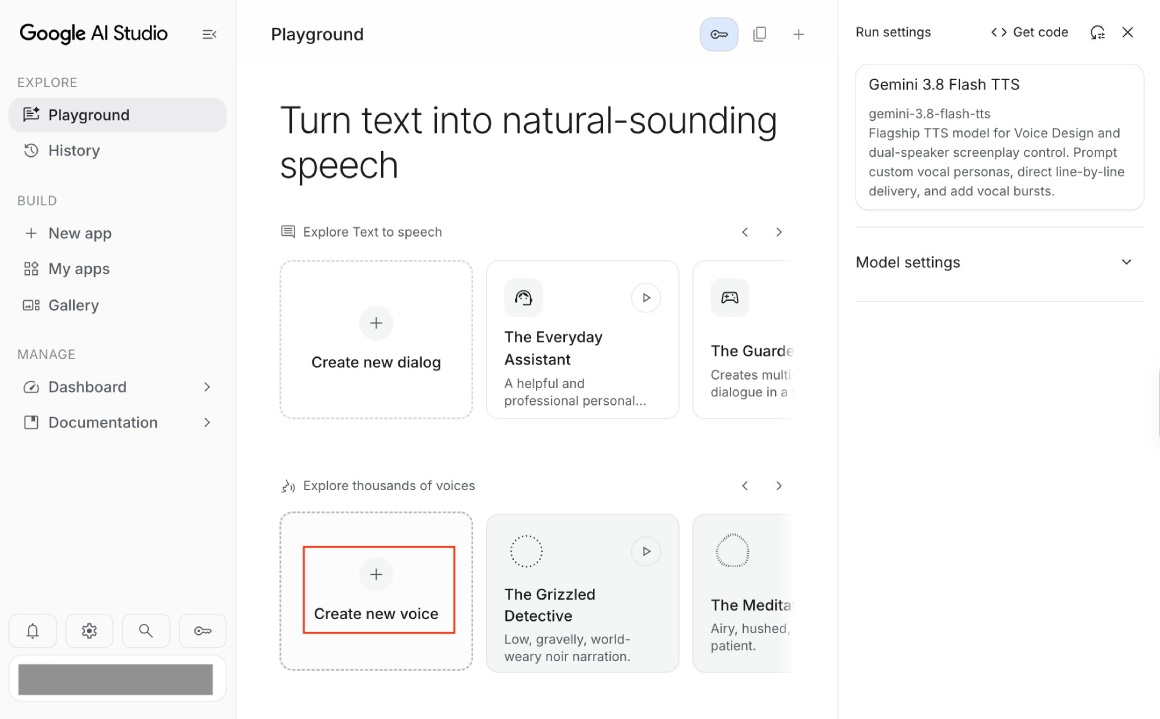
Open the browser of your choice (preferably Chrome) and head over to the Google AI Studio Speech Generation page and click on Create new voice as seen below:
Voice replication #
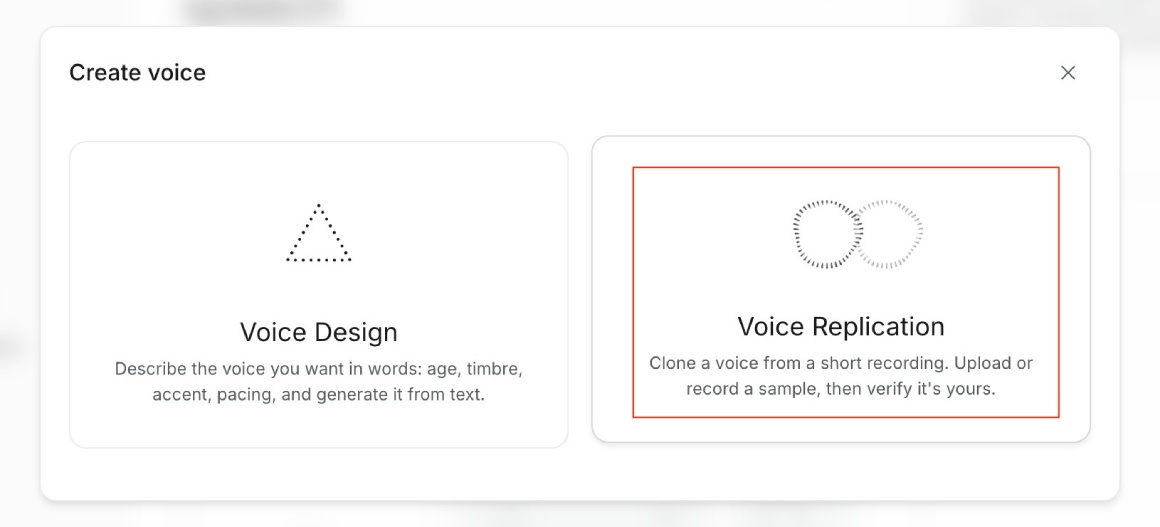
Then click on Voice Replication as follows:
After that, if you want, you can name the voice; for this tutorial, I will name it Signature Voice, the default one, then click Record your voice and start recording as seen below:
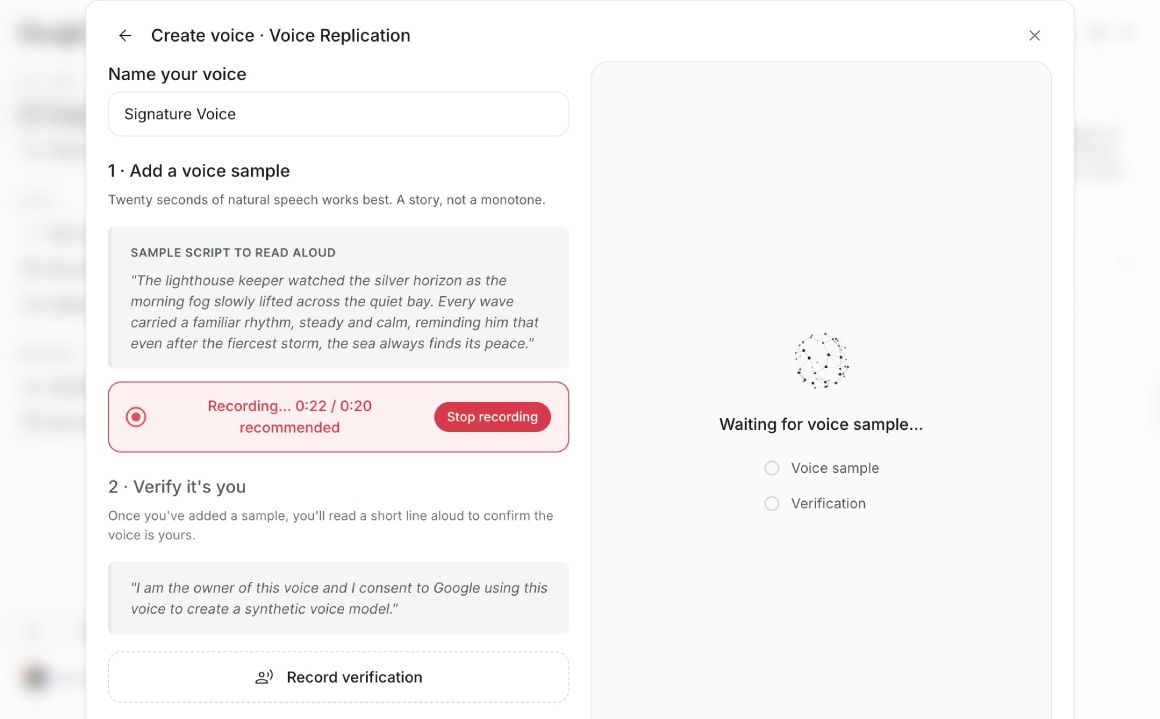
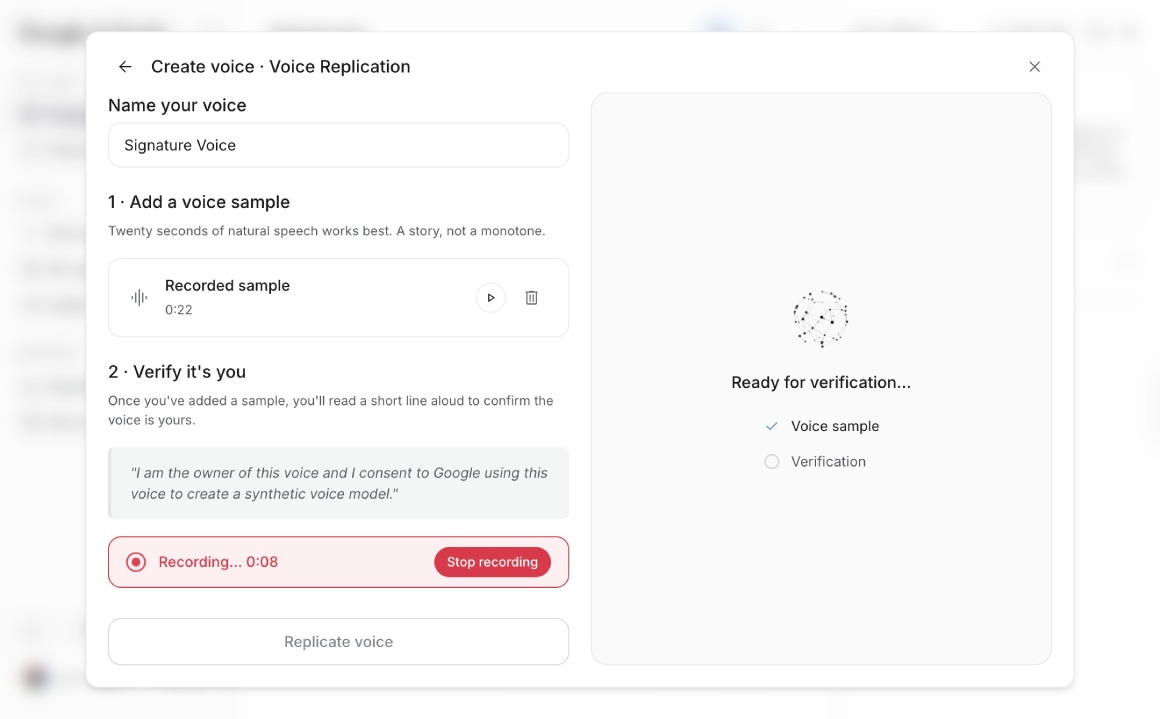
Then, you will need to verify that the voice is yours by recording the verification sentence, as you can see below, after you click Record verification:
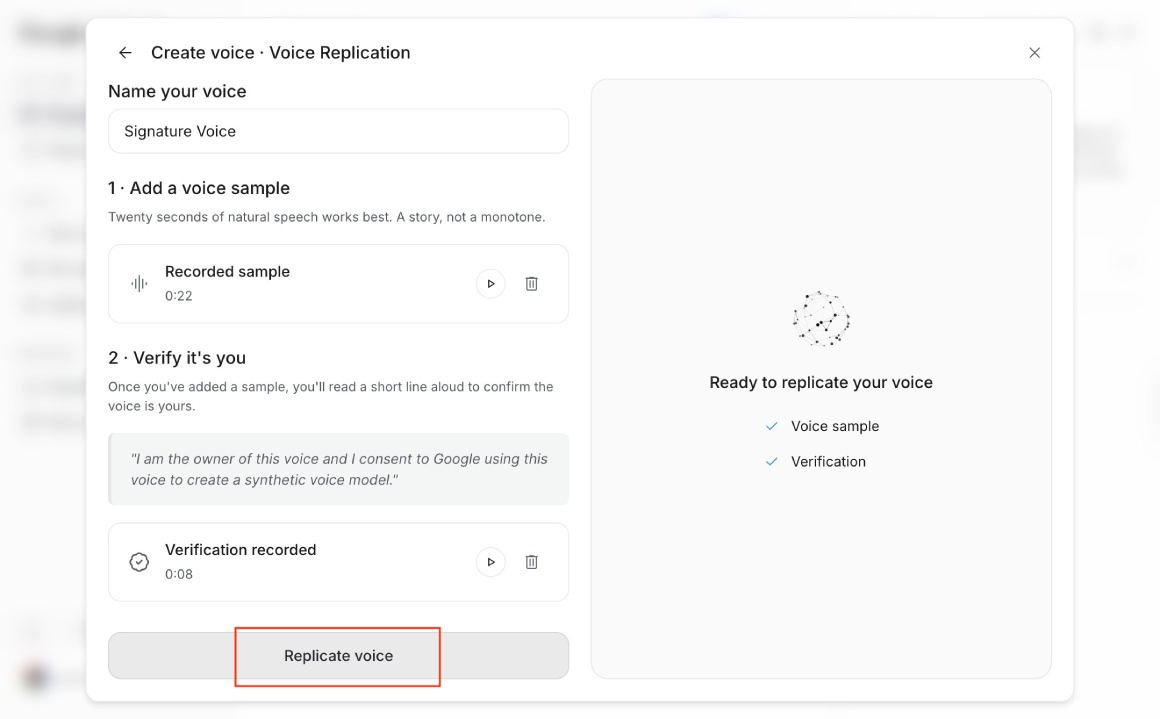
Only after the verification is done can you replicate your voice by clicking the Replicate voice button:
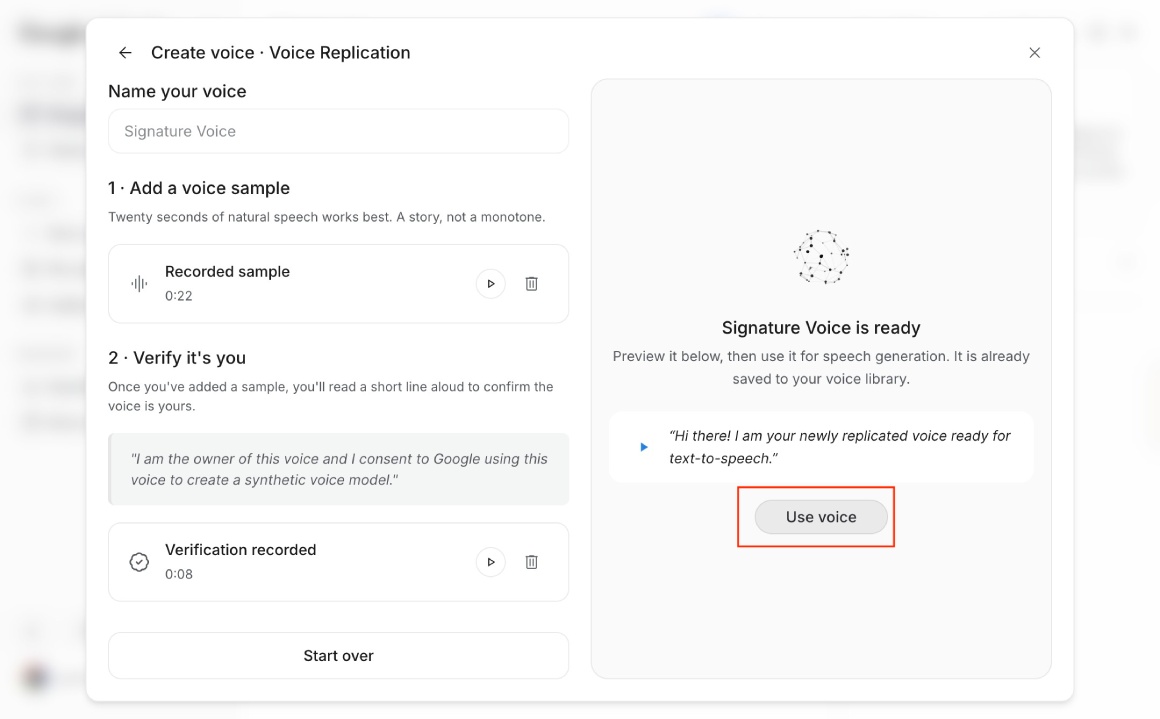
If all goes well, your voice will be replicated in the Google AI Studio UI and ready for text to speech use, as seen below:
Use replicated voice for text to speech #
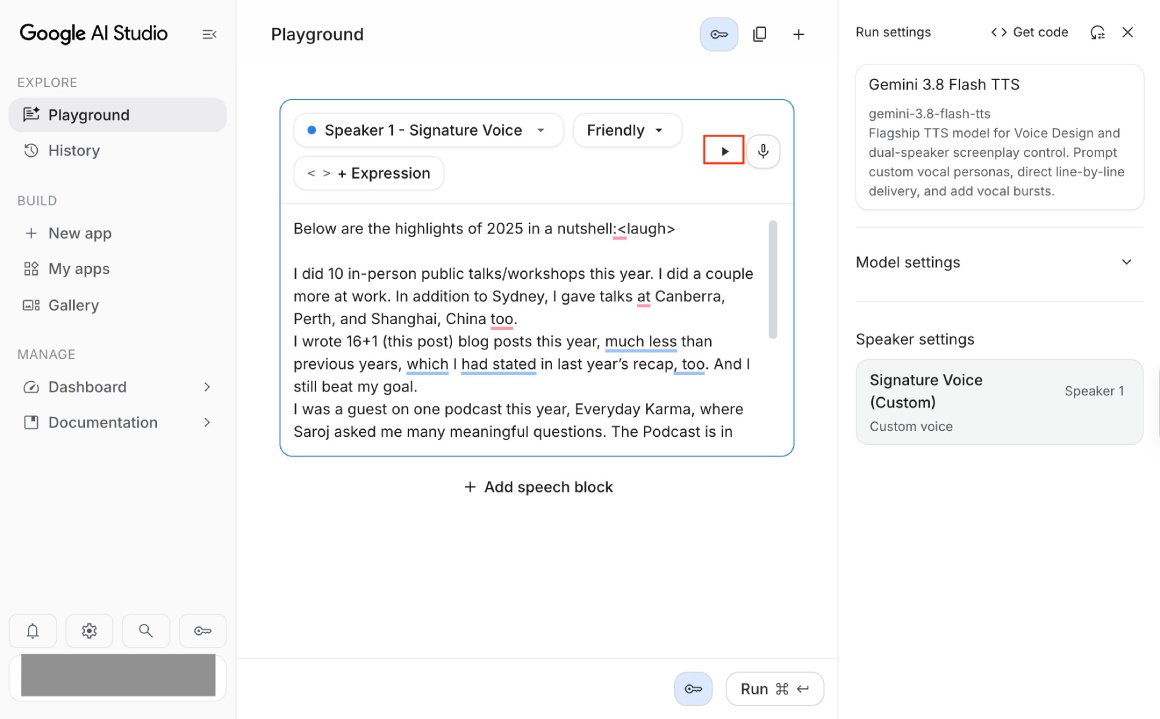
When your voice clone is ready, and you land on the Playground with your clone voice selected. You can paste some text (from my 2025 recap) like:
Below are the highlights of 2025 in a nutshell: <laugh>

I did 10 in-person public talks/workshops this year. I did a couple more at work. In addition to Sydney, I gave talks at Canberra, Perth, and Shanghai, China too.
I wrote 16+1 (this post) blog posts this year, much less than previous years, which I had stated in last year’s recap, too. And I still beat my goal.
I was a guest on one podcast this year, Everyday Karma, where Saroj asked me many meaningful questions. The Podcast is in Nepali.
I helped organize nine meetups and one conference for GDG Sydney, and I have transferred the GDG Sydney organizing part to the next generation.
I have listened to 9 days, 19 hours of podcasts this year, from the Pragmatic Engineer to Practical AI and from Tech Lead Journal to Kubernetes Podcast.
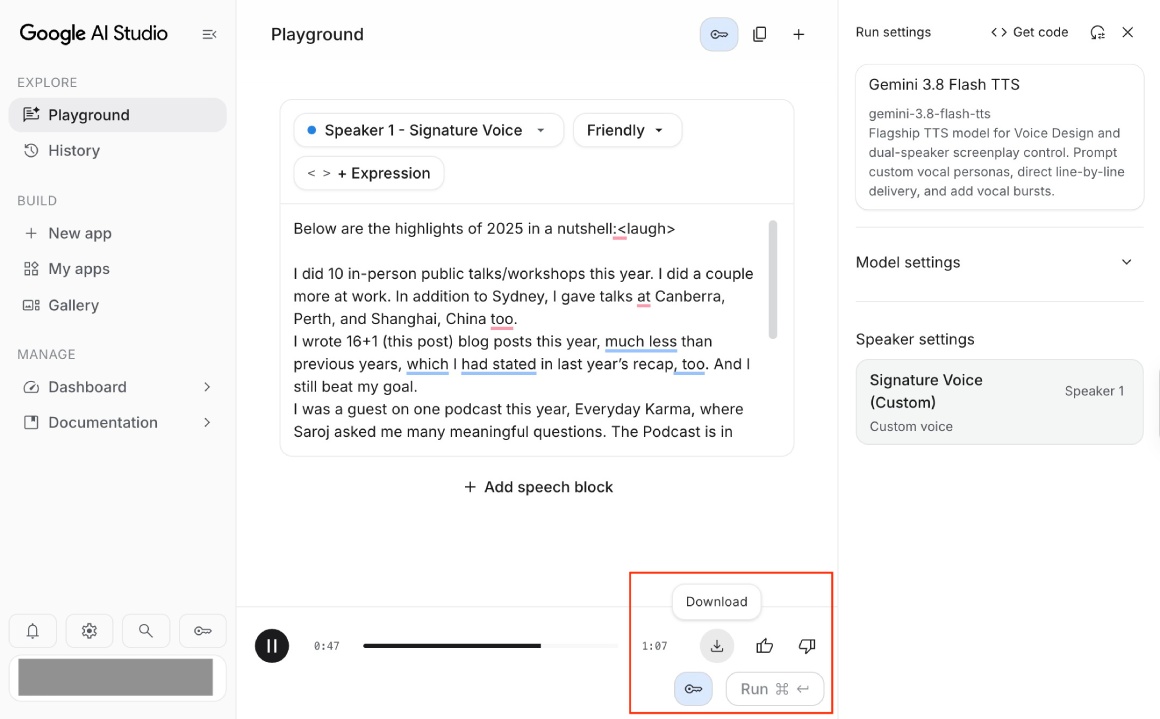
In the text box, click the play button to see if it can read the text. You can also adjust the tone to be Friendly or describe your tone like use an excited Australian accent. You can also add expressions like <laugh> or <sigh> to make it sound natural:
Once you are satisfied, you can generate the wav file by clicking the Run button at the bottom of the page. When the generation is done you can also download the generated audio as a *.wav file as seen below:
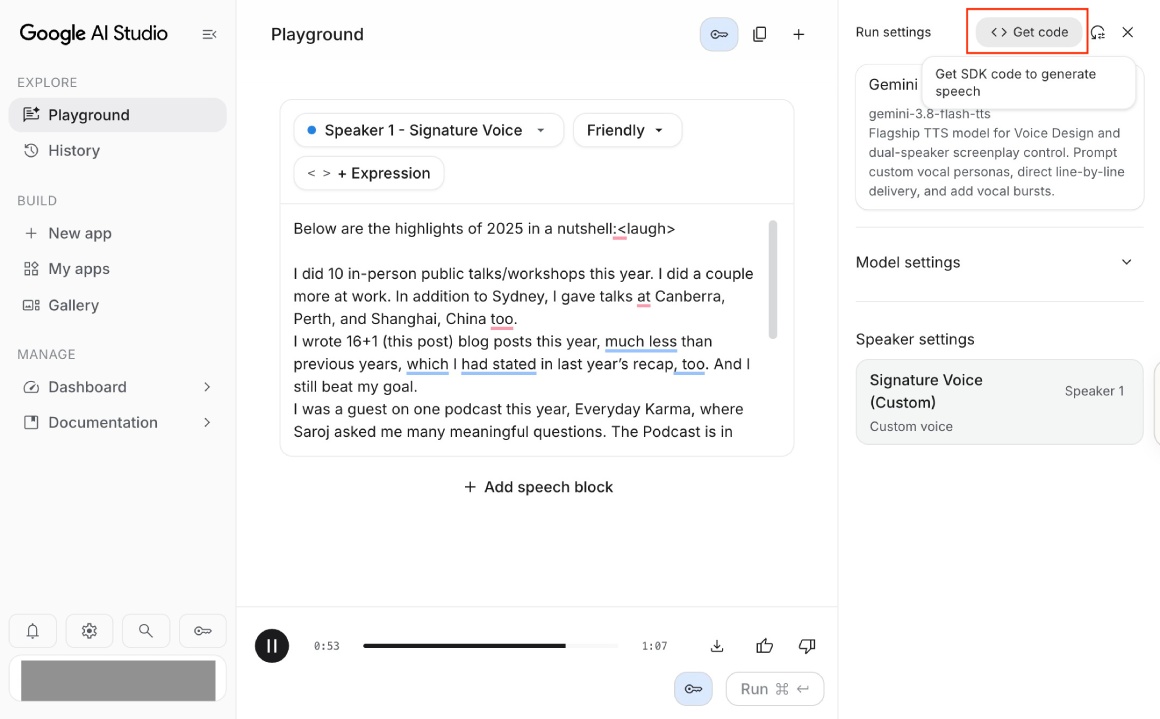
If you want to try out the code, you can also click the Get Code button at the top right side of the page and copy the Python or TypeScript (node.js) code and run it on your local machine or GCP Cloud Shell:
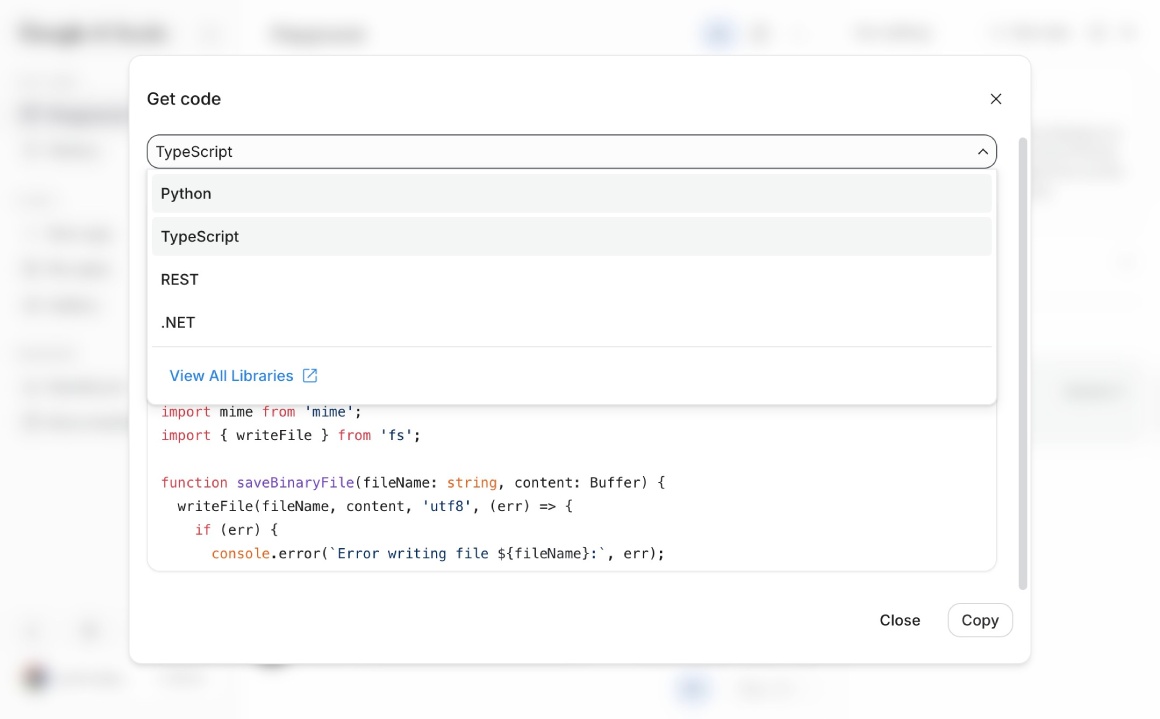
The code looks like the below and can be downloaded in Python, TypeScript and .NET:
You can reuse your cloned voice when you come to the Generate speech page again on Google AI Studio from the Custom voices section.
There you have it: cloning your own voice and using it to generate speech from any text is easy.
Conclusion #
In this step-by-step tutorial, you learned about Gemini text to speech and how the Gemini 3.8 Flash TTS model brings expressive, human-like audio generation to your fingertips. After that, you walked through how to clone your own voice interactively in Google AI Studio using a 10-to-30-second reference clip and a spoken consent statement. Finally, you used your replicated voice to generate expressive speech in the Google AI Studio browser interface.
Give Gemini text to speech voice replication a spin on your project. Keep exploring Gen AI and its endless possibilities. Don't trust what you hear online; it might be a cloned voice, not a real human.