




The Google Gemini LLM and the app have more features than you can see from the surface. In addition to generating images, audio, and music, you can also use Gemini for Deep Research, Guided Learning, and generating microapps on the fly with Gemini Canvas. In this post, you will learn how to use Deep Research, Guided Learning, and Canvas features in Gemini for software engineering tasks. Let's get going!
Table of contents #
Gemini Features #
Google Gemini has evolved far beyond a basic chat window. Tucked away inside its interface and feature set are powerful tools designed to handle complex research, interactive technical learning, and real-time code refactoring. Understanding these Google Gemini features will save you hours of manual work and improve your software engineering productivity.
Discover 3 almost hidden Gemini AI features that you should start using today to elevate your engineering, architecture, and learning workflows. Treat the prompts below as examples and a new way to think and leverage the power of an LLM like Gemini.
Deep Research #
Deep Research is an advanced capability within Google Gemini designed to act as an autonomous research assistant. Instead of giving you a quick 200-word response based on a single search query, Gemini executes a multi-step research loop. It plans a research strategy, executes dozens of targeted search queries, browses multiple web pages simultaneously, evaluates technical documentation, and compiles a comprehensive, fully-cited research report. In the research process, in addition to Google Search, it can draw context from your Gmail, Drive, and even Chat.
Deep Research transforms Gemini from a simple chat assistant into an autonomous research agent that explores, analyzes, and synthesizes complex technical topics across dozens of web sources.
Using Deep Research to evaluate message Queue options #
Imagine your team is evaluating which message queue software to choose for a new microservice that needs to send 1000 emails per second with low latency. You need a comprehensive technical comparison between RabbitMQ, Kafka, and Redis (as a queue).
Instead of spending half a day reading documentation and benchmarks, you can pass the following detailed prompt to Gemini using Deep Research:
Run a deep research analysis comparing RabbitMQ, Kafka, and Redis (as a queue) for a high-throughput, write-heavy e-commerce email processing service.
Please include:
1. Architectural differences
2. Performance benchmarks under high concurrent write loads.
3. Scaling characteristics and operational complexity (horizontal vs vertical scaling).
4. Cost models for a production workload running 1,000 email sends per second continuously; the email provider can handle that load
5. Known limitations, trade-offs, and single-point-of-failure risks.
Provide the final output as a structured technical RFC with citations and comparison tables.
To use the Gemini Deep Research feature:
- Go to Gemini Web (https://gemini.google.com/ ) or the Gemini App on your mobile
- Click the
+sign besidesAsk Geminitext box - Then hover on
More tools - After that, click on
Deep researchas shown below
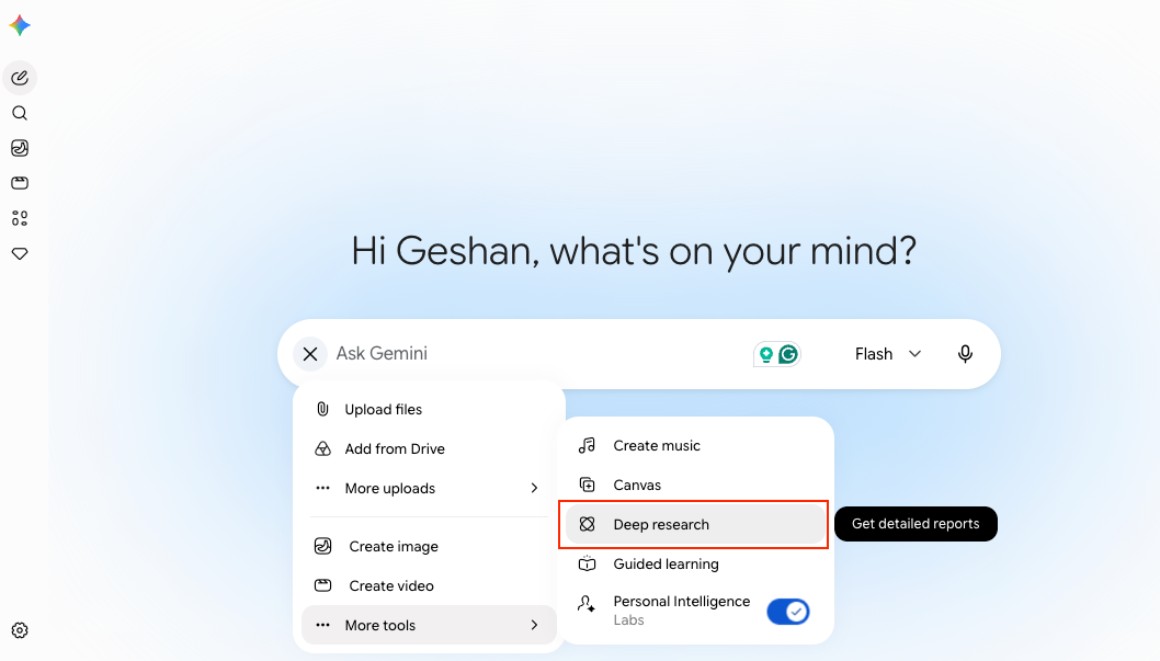
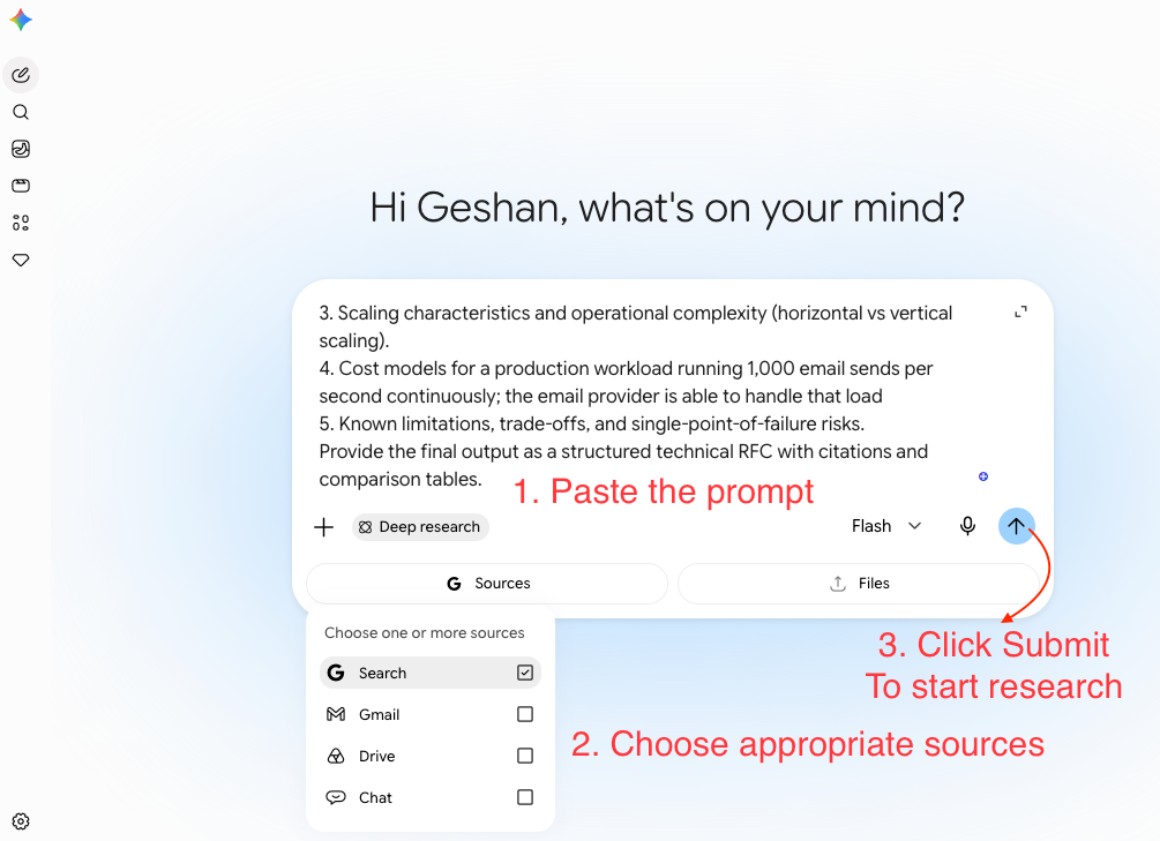
- Then, paste the above prompt
- Choose the appropriate sources; Google Search should be enough in most cases
- Click
Submitto start the research as follows:
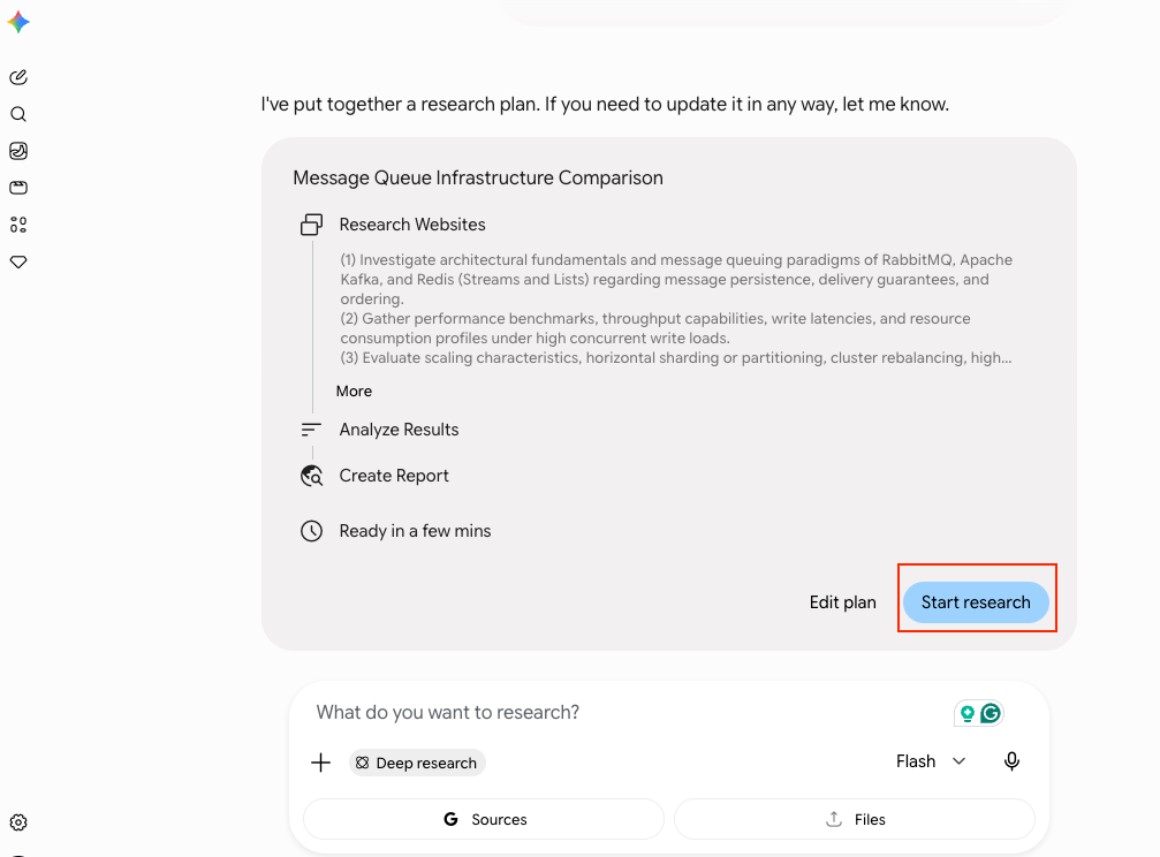
After that, it will devise a plan; you can edit the plan or choose Start Research
It will take some minutes and come back with a comprehensive report after scanning and scraping dozens of links related to the given prompt and topic. Below is what it came back for me:
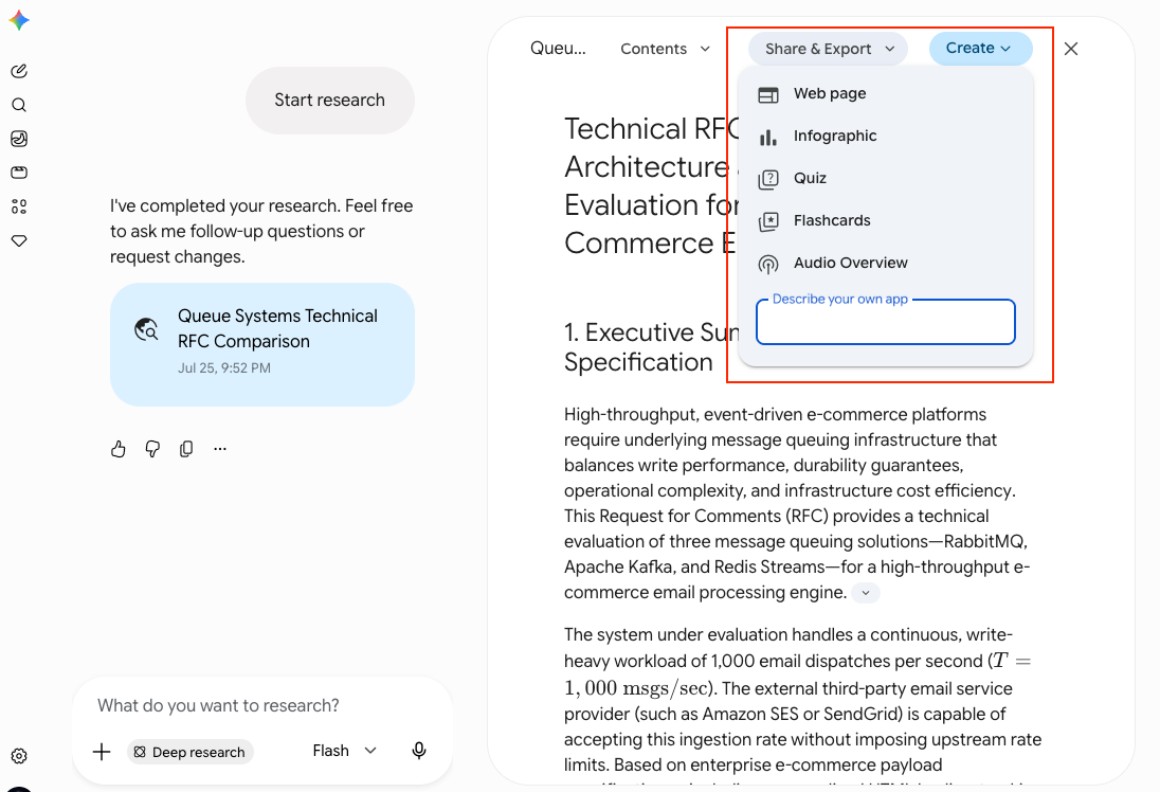
You can read it, export it as a Google Doc, or generate other artifacts from it like an infographic, Webpage, quiz, or even a podcast (Audio Overview). For example, A part of the infographic it generated from the research looks as follows:
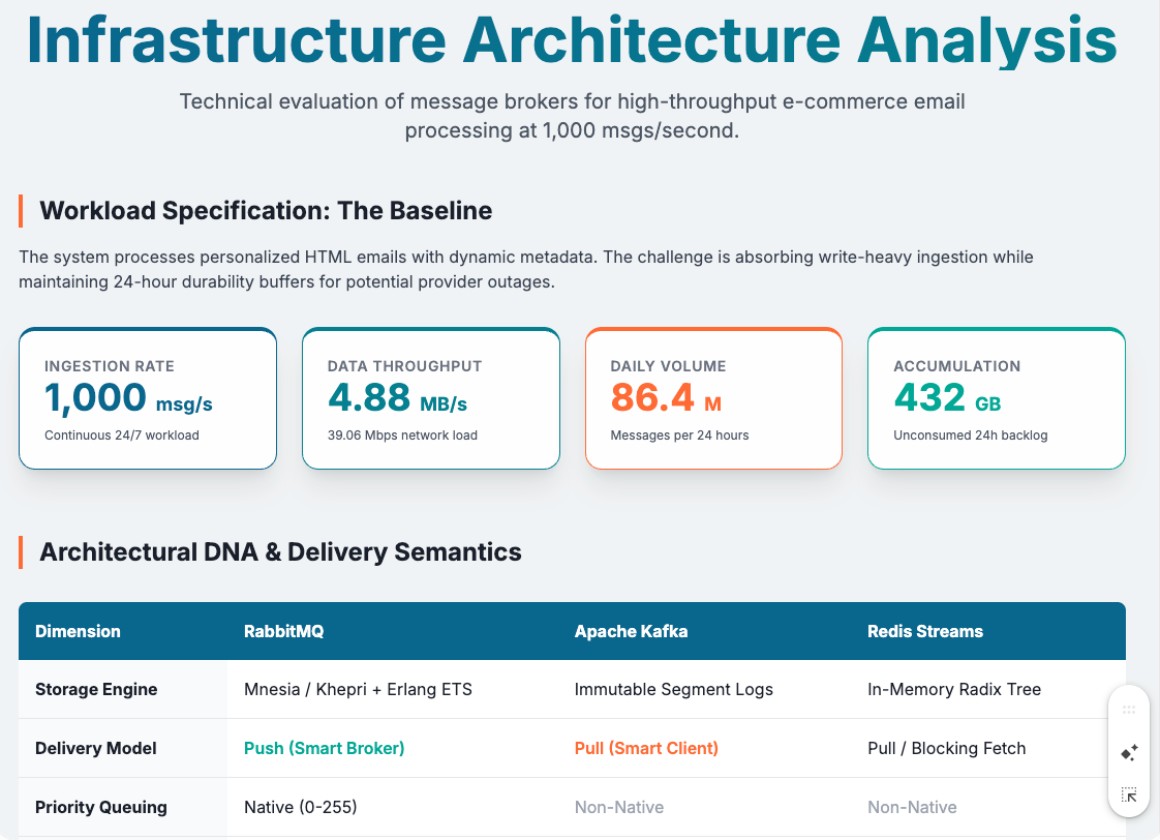
There you have it; rather than going through documentation and combing through 5 Google searches, you can ask Gemini to do the heavy lifting, edit the report a bit, and get a good enough RFC to select a message queue software for your needs. Next, you will learn about Guided Learning.
Guided Learning #
Gemini Guided Learning guides you to learn something rather than handing you the answer. It breaks down complex concepts step-by-step, asks you questions to check your understanding, and provides hints rather than flat answers.
Guided Learning shifts AI from an answer generator to an active learning partner, helping you build a deeper conceptual understanding even for software engineering fundamentals.
Guided learning in practice #
You will use guided learning to understand the tricky execution sequence of JavaScript where understanding the difference between the Microtask Queue and the Macrotask Queue is key. To learn this, you will:
- Go to Gemini Web or the app
- Click the
+sign besidesAsk Geminitext box - Then hover on
More tools - After that, click on
Guided learningas shown below
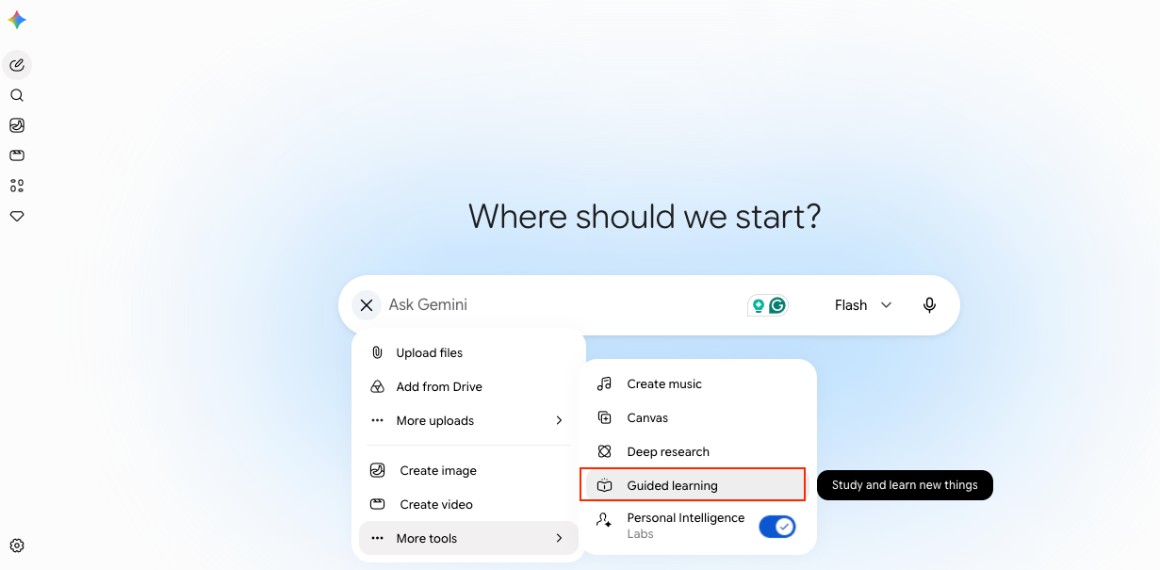
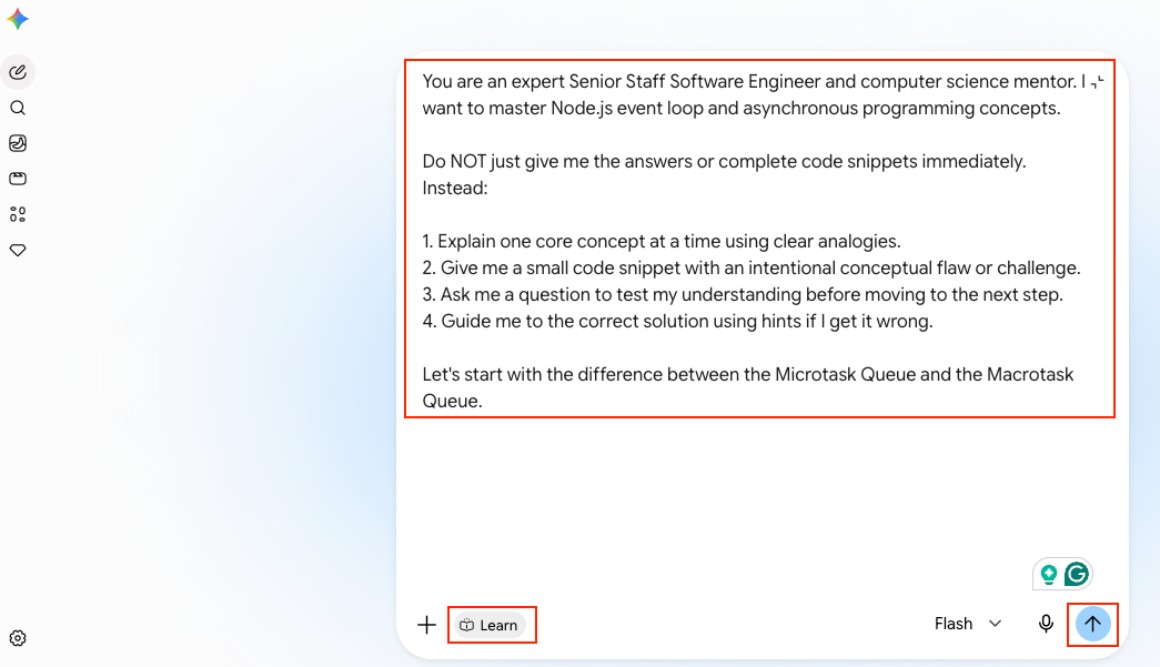
Then paste the prompt in the text box and click Submit:
You are an expert Senior Staff Software Engineer and computer science mentor. I want to master Node.js event loop and asynchronous programming concepts.
Do NOT just give me the answers or complete code snippets immediately. Instead:
1. Explain one core concept at a time using clear analogies.
2. Give me a small code snippet with an intentional conceptual flaw or challenge.
3. Ask me a question to test my understanding before moving to the next step.
4. Guide me to the correct solution using hints if I get it wrong.
Let's start with the difference between the Microtask Queue and the Macrotask Queue.
As seen below:
It will start teaching you the JavaScript sequence of execution with the event loop and async concepts:
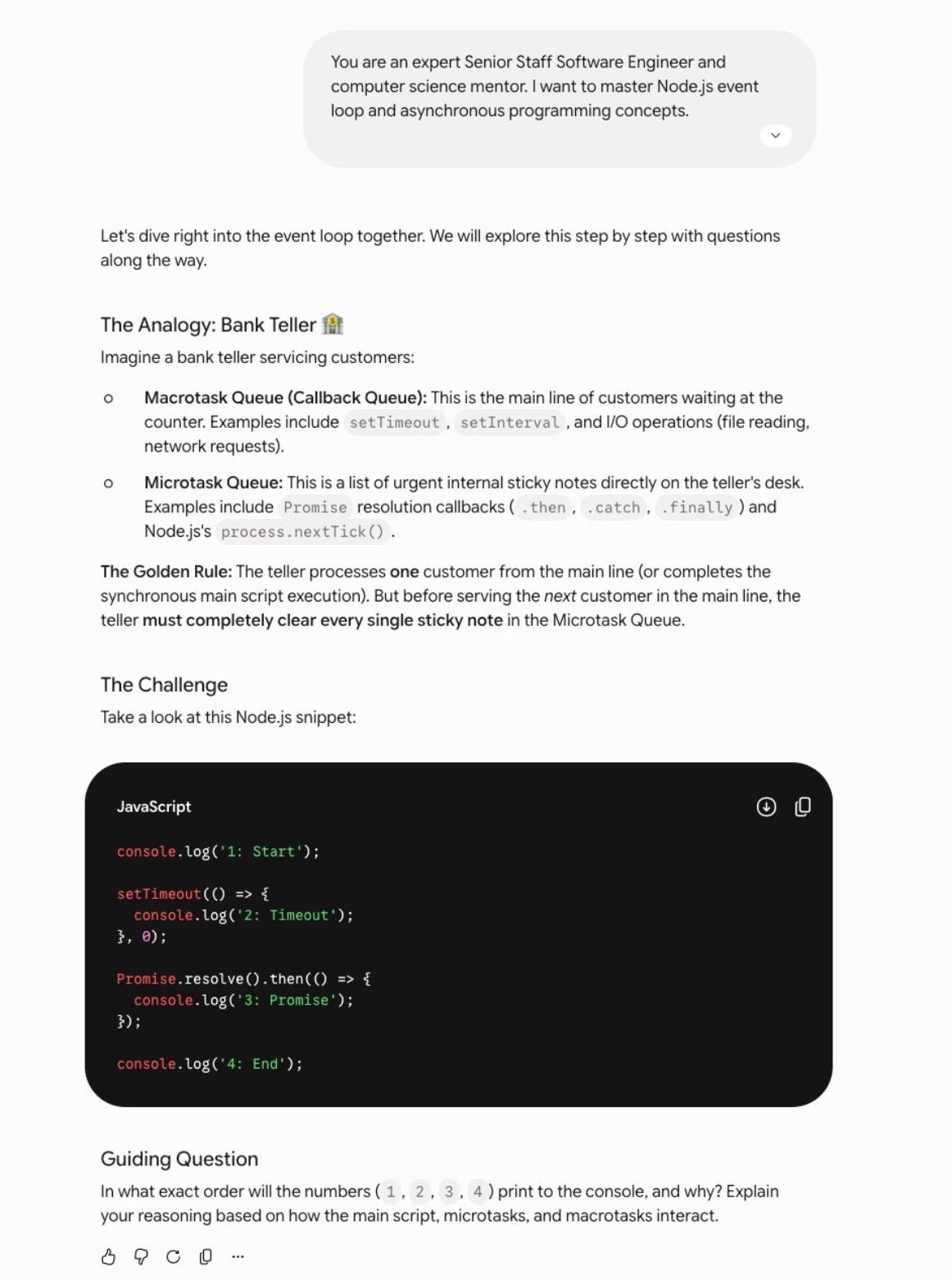
It will give you a question to answer about the sequence of execution of some JavaScript code. You can spend time with it. You can also ask things like I want to learn the basics of React.js or I want to learn Nest.js, and guided learning will help you learn these things or anything you prompt it in a step-by-step guided way.
If you spend even 10 minutes a day on a concept, you will learn many new things, and as you have your previous chats on the left side, you can continue your learning later too. Learning by doing and answering prompts ensures you retain knowledge far better than passively reading. In the next section, you will learn about the Gemini Canvas feature.
Canvas #
Gemini Canvas is an interactive, split-screen workspace built directly into the Gemini interface. On the left side of the screen, you maintain your ongoing chat conversation. On the right side, you have a dynamic, dedicated editor window (the Canvas) where your (frontend) code/output, Markdown documentation, or architecture diagrams reside. With Gemini Canvas, you can go from a prompt to an app in minutes.
Gemini Canvas provides a dedicated, real-time code and text editor alongside your AI chat, allowing you to edit, refactor, and polish code without managing endless copy-paste operations across chat messages.
Gemini Canvas in action #
As an example of using Gemini Canvas, you will build a useful app that shows and compares weather across three cities. If you are traveling to a new city and want to know beforehand what the weather is going to be like, this app comes in handy. To build and use this practical mini app, you can:
- Go to Gemini Web or the app
- Click the
+sign besidesAsk Geminitext box - Then hover on
More tools - After that, click on
Canvasas shown below
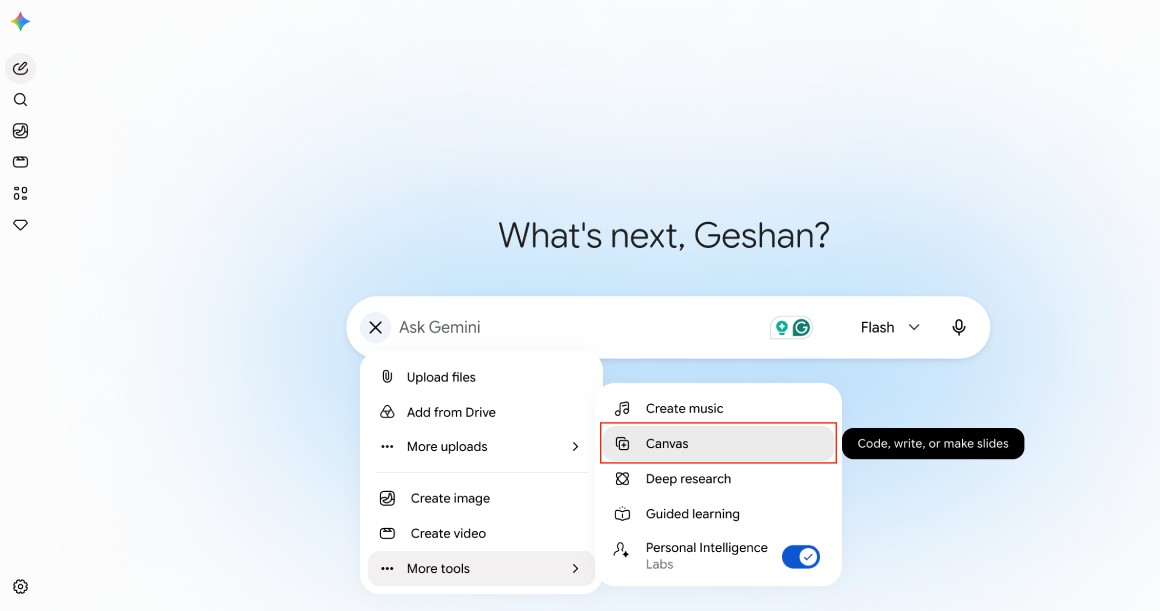
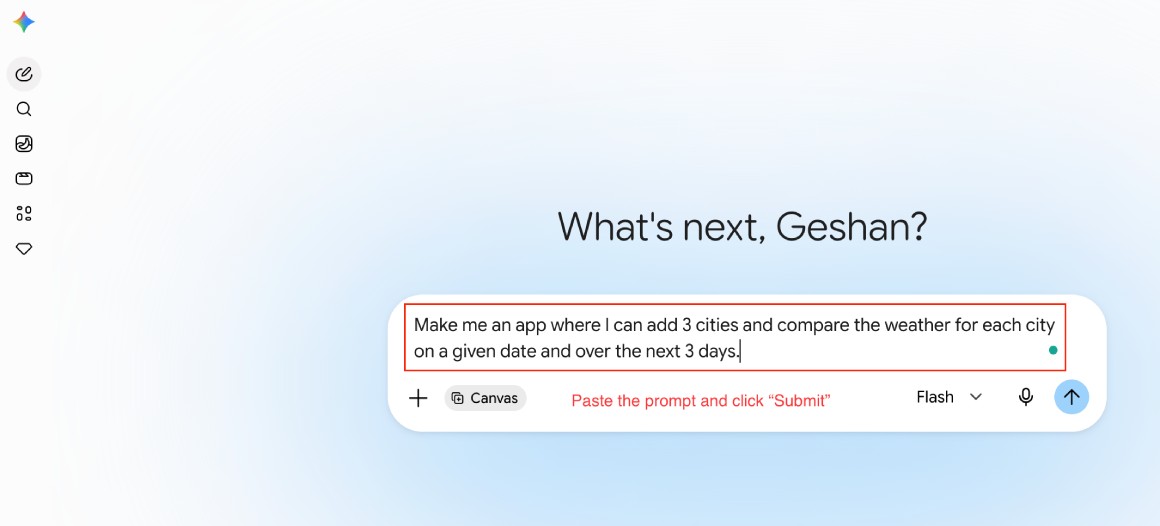
Then, paste the short prompt below:
Make me an app where I can add 3 cities and compare the weather for each city on a given date and over the next 3 days.
And click Submit, as follows:
It will take some time, then present you with the mini multi-city weather-comparing app. I tried it with Sydney, Melbourne and Brisbane as you can see below:
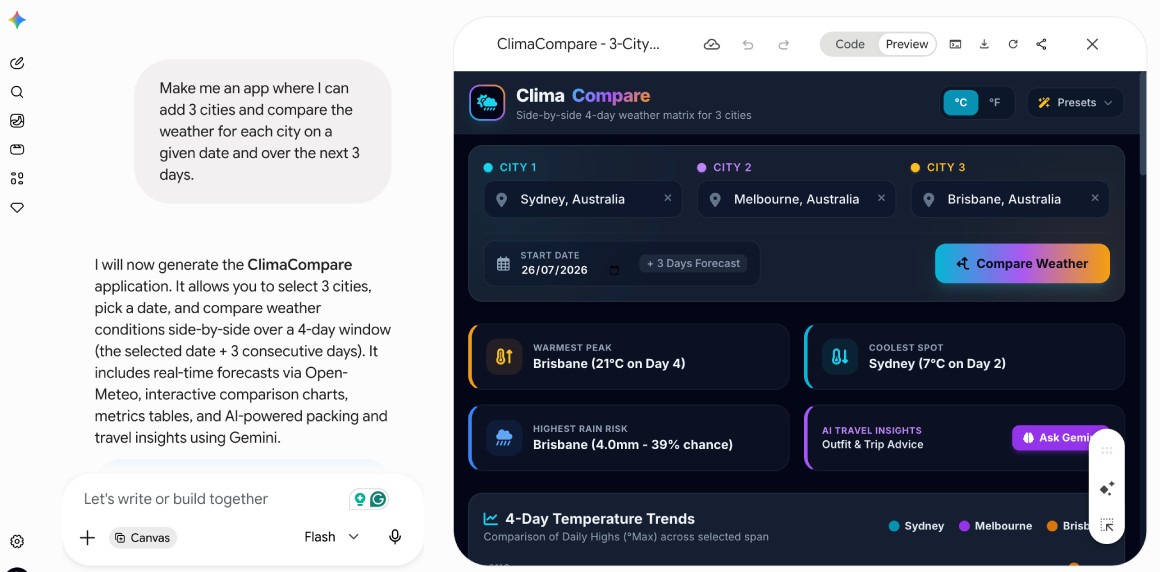
You can switch to Code view and then highlight some code and ask questions; for instance, below I am highlighting some CSS code and asking Is this CSS code cross-browser compatible?
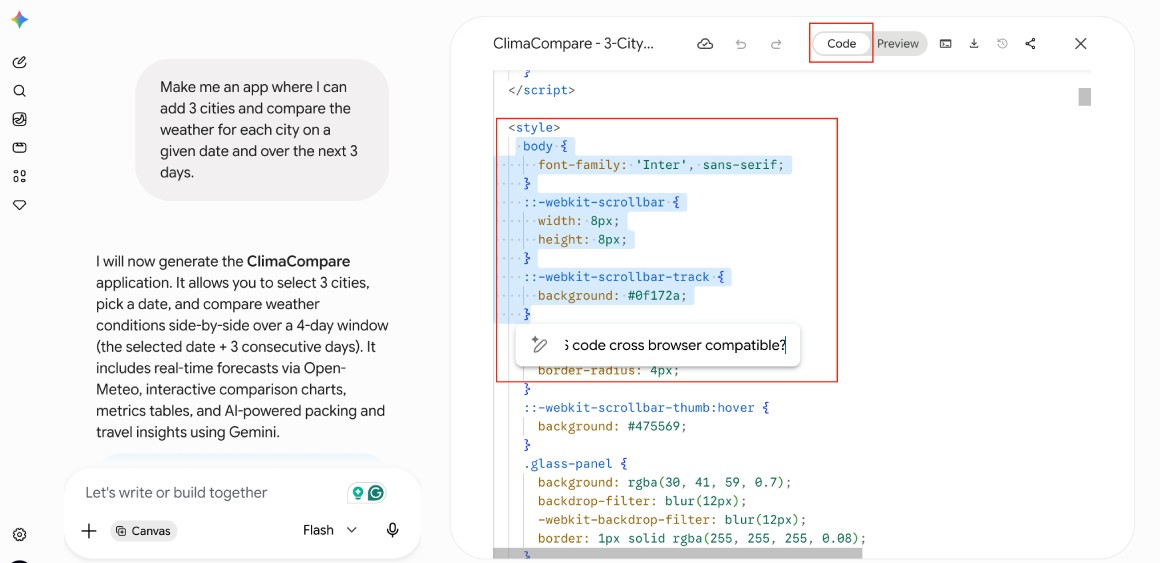
If you use the Console option from the three dots in the top right corner, you will see the browser console output there. You can download the app as a single index.html file and deploy the HTML file to any static website hosting too, like Cloudflare Pages or Netlify. You can also share a link directly from Gemini that goes to your mini app like this.
Conclusion #
The Google Gemini platform has expanded far beyond simple chat interactions, offering powerful specialized tools like Deep Research, Guided Learning, and Canvas that significantly enhance software engineering and learning workflows. By automating complex research tasks, providing interactive, step-by-step educational guidance, and enabling real-time code development within a split-screen workspace, these features eliminate hours of manual, repetitive work and foster deeper conceptual understanding.
Ultimately, these "hidden" capabilities transform Gemini into an indispensable engineering partner that supports everything from architectural evaluation to rapid application prototyping. Integrating these tools into your daily routine is an essential step for staying productive in a fast-paced development landscape; start leveraging them today to streamline your research, master new technologies, and accelerate your development cycle. Keep learning and experimenting!