




Google Antigravity 2.0 has some very interesting features. One of them is the /goal command, which runs until the specified task is complete, without asking the user for intermediate input. The point here is to achieve the goal by iteratively and autonomously checking the output until it is accomplished. In this post, you will learn how to use /goal to build a last updated at feature on this blog and also test it on the browser with only one prompt. Let's get going!
Table of contents #
- What is Google Antigravity?
- Prerequisites
- Clone the blog
- Open the blog in Antigravity 2.0 IDE
- Prompt with /goal to write and test the last updated at feature
- Conclusion
What is Google Antigravity? #
Google Antigravity is an AI-powered development tool that helps you build and test applications faster. It uses Gemini 3.5, which is a large language model developed by Google. You can use it to generate code, test applications, and even deploy them to the cloud. It has Antigravity (Agentic interface without the IDE), a CLI, SDK, and an IDE; each has different features and capabilities. You can read about the difference between them. In this post, you will be using Antigravity IDE 2.0.
Prerequisites #
Before you get into hands-on prompting, below are the things you should have:
- You must have the Antigravity 2.0 IDE installed and working; make sure you have the IDE, not Antigravity 2.0 (without the IDE), the CI, or SDK. You can download it from here. Please make sure you download the IDE.
- If you want to follow the tutorial end-to-end, you will need Node.js (preferably version 22 or above) installed on your machine, and have the Chrome browser running too
- You will need Git running and be able to clone from GitHub.
- For a better experience, you might want to subscribe to the Google AI Plus or Pro plan for higher limits to use Gemini
Given that these things are mentioned, let’s start adding the last updated at date to this blog.
Clone the blog #
You can clone this blog from GitHub by running the following command:
git clone -b source-13-Jun-2026 --single-branch --depth 1 [email protected]:geshan/geshan.github.com.gitIt will look something like the following when done:

Then you can go into the folder with cd geshan.github.com. Please do not use this blog as a template or theme. You can use it to try out this tutorial, but do not replicate the blog or its content in any way. This blog uses Eleventy, so to build and run it, you will need Node.js (preferably version 22 or later) installed on your machine.
Open the blog in Antigravity 2.0 IDE #
Open your Antigravity 2.0 IDE, then click on File > Open folder and select the folder you just cloned. After that, you can open these three files (if you want):
- . /_includes/components/posted-date-time.njk
- ./ _includes/layouts/post.njk
- ./posts/2026-03-27-google-ai-studio-database.md
Which will look like the following in the IDE:
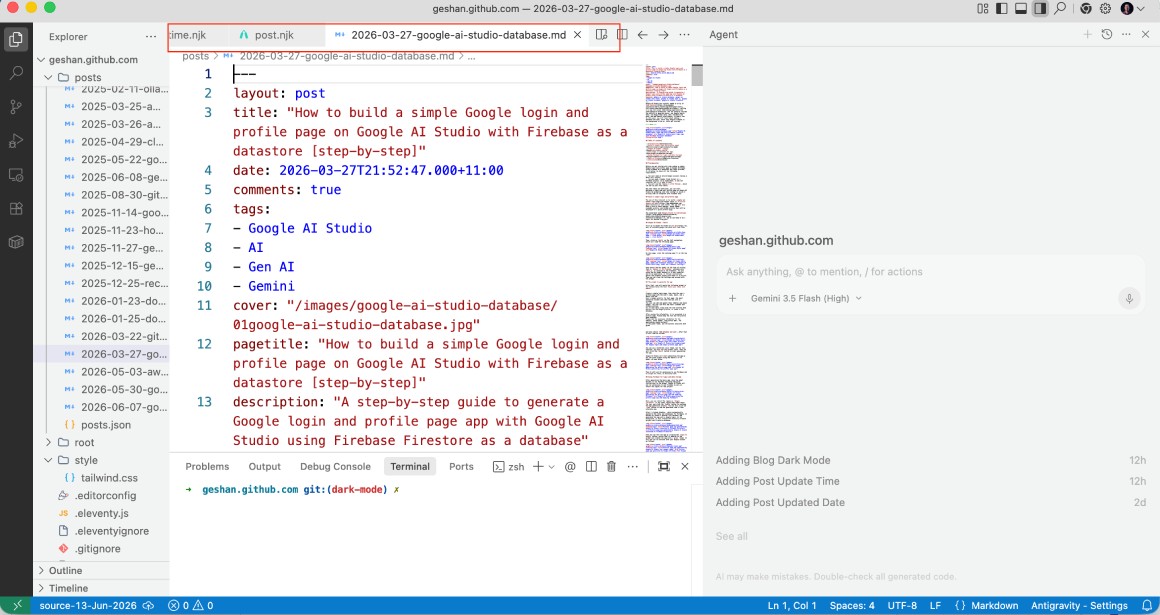
In the next step, you will write the prompt with /goal to get the last-updated-at feature written and tests, using a single prompt.
Prompt with /goal to write and test the last updated at feature #
To do this, make sure you are logged into your Google account and authenticated with Antigravity IDE. If that is the case, you will see your profile picture in the top-right corner of the IDE window. After you verify that you can start using the agent with prompts.
Add the following prompt to the Agent window; you might need to start a new conversation:
/goal add an updated at date to posted-date-time.njk file where an updated at date can be added to a post like add updatedAt: 2026-04-17T22:43:52.000+11:00 to 2026-03-27-google-ai-studio-database.md.

Some Important requirements are:

1. Make sure both the created data and the updated date are shown if the updated at date exists.
2. Created at should be shown first, then updated at should be shown only if it exists.
3. The mobile view should not break, and the spacing between the created and updated date should work without issue.
4. It should show the updated at date only on the blog detail page; all other pages should show the created at date only.
5. It should also update the ld+json schema in the post.njk file to include the updated at date if it exists in the dateModified field

Test it in the browser to verify that it works on both desktop and mobile views, showing the last updated date correctly only if it exists, and always showing the created at date.
You will need to link the 3 files using the @ sign before each one, then select the correct file. The prompt in the Google Antigravity 2.0 IDE’s agent window will look as follows:
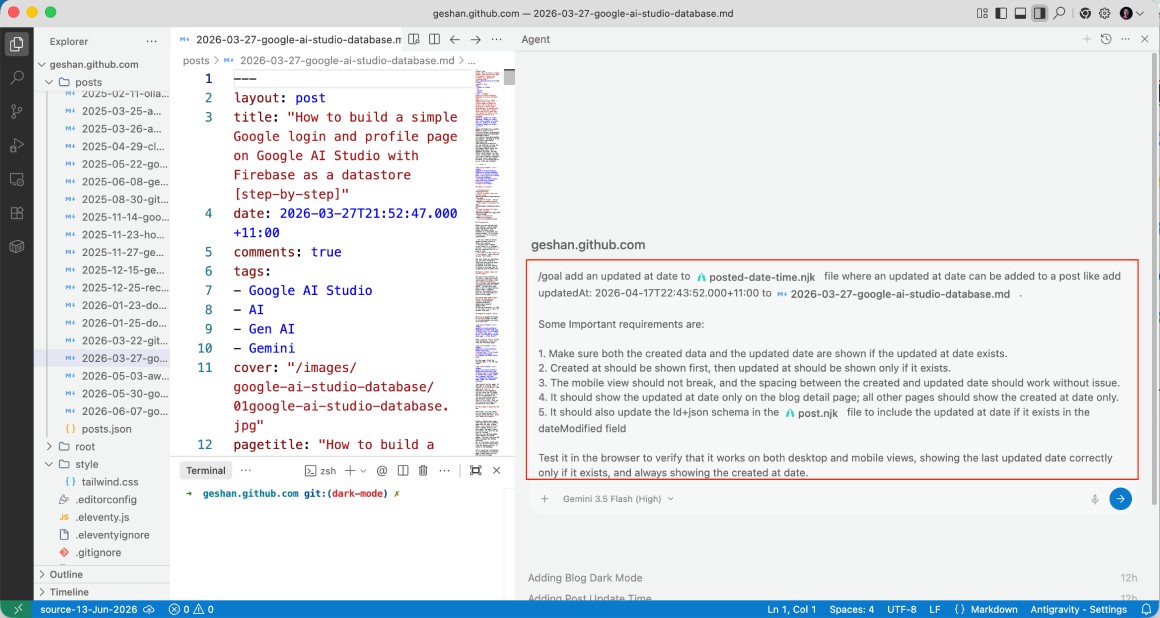
I am using the Gemini 3.5 flash (High) model to get the job done. You can choose the same model as well. After that, you will hit the → button to get the feature started, written, and tested with the useful /goal slash command.
The whole process looks like the following after you start it and it finishes testing it (there is no audio in the video below):
The video has been sped up at 4x; the operation took around 8 minutes in real life.
After that, I can accept all the changes, commit them to a git branch, and open a pull request. Or even as the agent to create the pull request after committing. Google Cloud credits are provided for this project.
There you have it: with a single /goal prompt and the browser operated by Antigravity IDE, you can add a new feature and verify it works in the browser. I hope it was easy. At the end, the IDE created a walkthrough file with screenshots showing the feature is working as expected.
You can use /goal to try to do another feature like dark mode. You can also try other slash commands like /grill-me, where the IDE questions you for the right direction and suggests a thorough plan. Also, /browser is another useful command to automate the browser. You can learn more about these in this codelab.
Conclusion #
This post explored how to use the /goal command in the Google Antigravity 2.0 IDE to automate adding a "last updated at" feature to an Eleventy blog. By setting up the necessary development environment and using a single, detailed prompt, you used the AI agent to implement the feature, update the relevant JSON schema, and even verify the results across different screen sizes. This workflow highlights the efficiency of using AI to handle end-to-end tasks, from coding to final validation.
Leveraging tools like the /goal command can dramatically accelerate your development process, allowing you to ship features with speed and precision. By offloading repetitive testing and implementation to the IDE, you can devote more energy to tasks that require more of your brain power. Start experimenting with these automation capabilities in your own projects to see how much time you can save while maintaining high-quality standards. Keep experimenting!