




Google AI Studio has recently added an array of new features, calling it a new full-stack vibe-coding experience and vibe-coding-to-production. The new feature include ability to generate music, use Google Search data, use Google Maps data, add a database and auth, and add Gemini intelligence, to name a few. In this post, you will learn about adding a database and auth, which uses Google Firebase in the background to do so. Let’s get started!
Table of contents #
- Prerequisites
- Build a simple login and profile page
- Google AI Studio - Build
- The prompt to generate the app
- Using Firebase for login and data storage
- Data in Firestore
- Conclusion
Prerequisites #
Before you get started with vibe coding a simple Google login and profile page on Google AI Studio using Firebase as a datastore and login provider, it is better to check off the following requirements:
- You will need an active Google account; having a Gmail will suffice
- You may need a Google Cloud Project or a Firebase project, in my experiment, it was not required, but it is good to have
- You will use the
Gemini 3.1 Pro Preview, which can eat up your free limits.
Given that is mentioned, you can start building a login and user profile page on Google AI Studio by prompting (and vibe coding) in place of writing code to integrate with Firebase next.
Build a simple login and profile page #
The aim of this tutorial is to build a simple but useful login page with Google login (1.8 billion people use Gmail each month). The app will also have a form to input address, phone number, LinkedIn profile, and GitHub profile that will be displayed on a plain profile page.
You could have used Google Stitch to vibe design it, we can keep it as a topic for another blog post.
Google AI Studio - Build #
First go to Google AI Studio at AI.dev or aistudio.google.com which will look like:
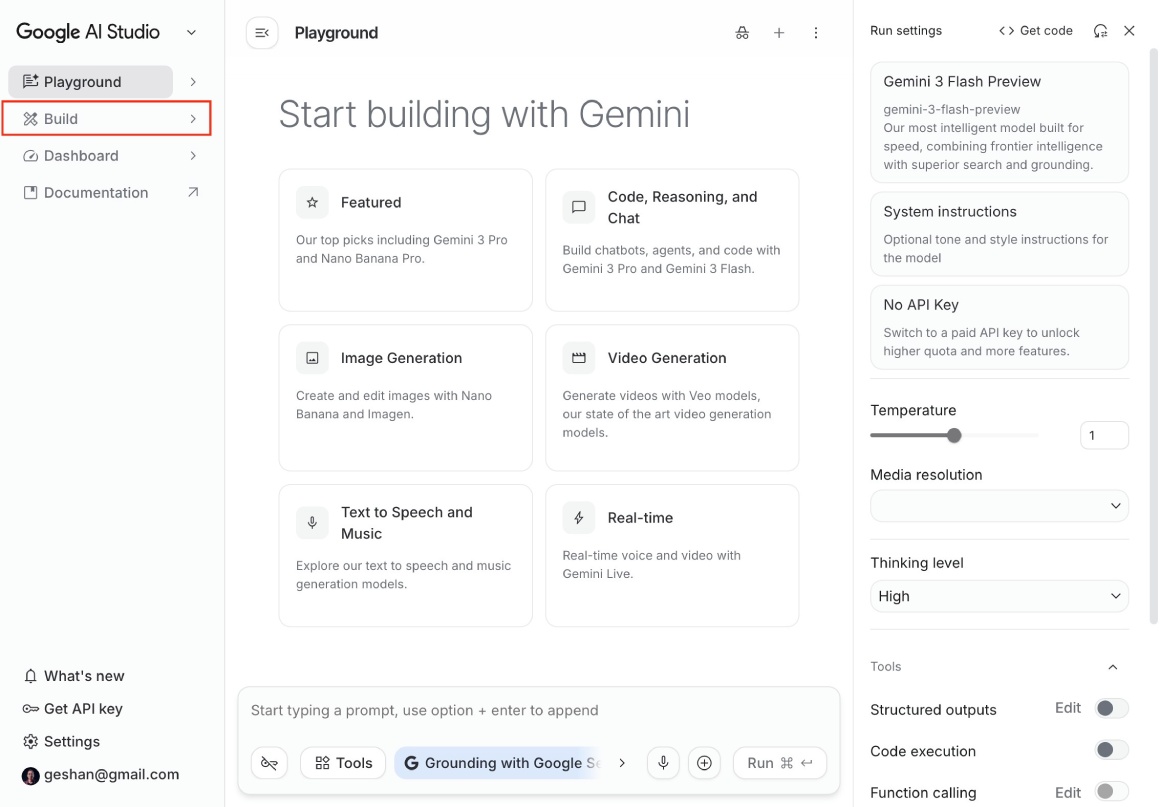
Then, click on Build on the left navigation, which will load the following page:
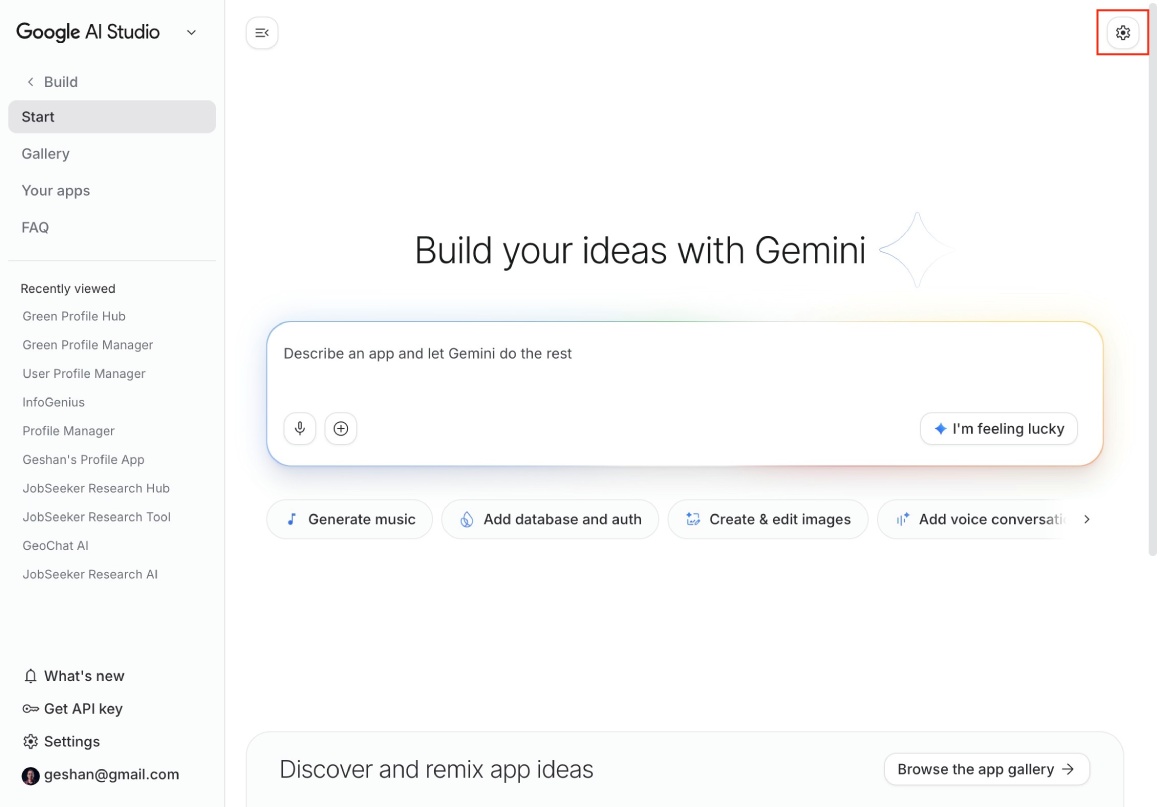
On this page, click the settings gear ⚙️on the top right:
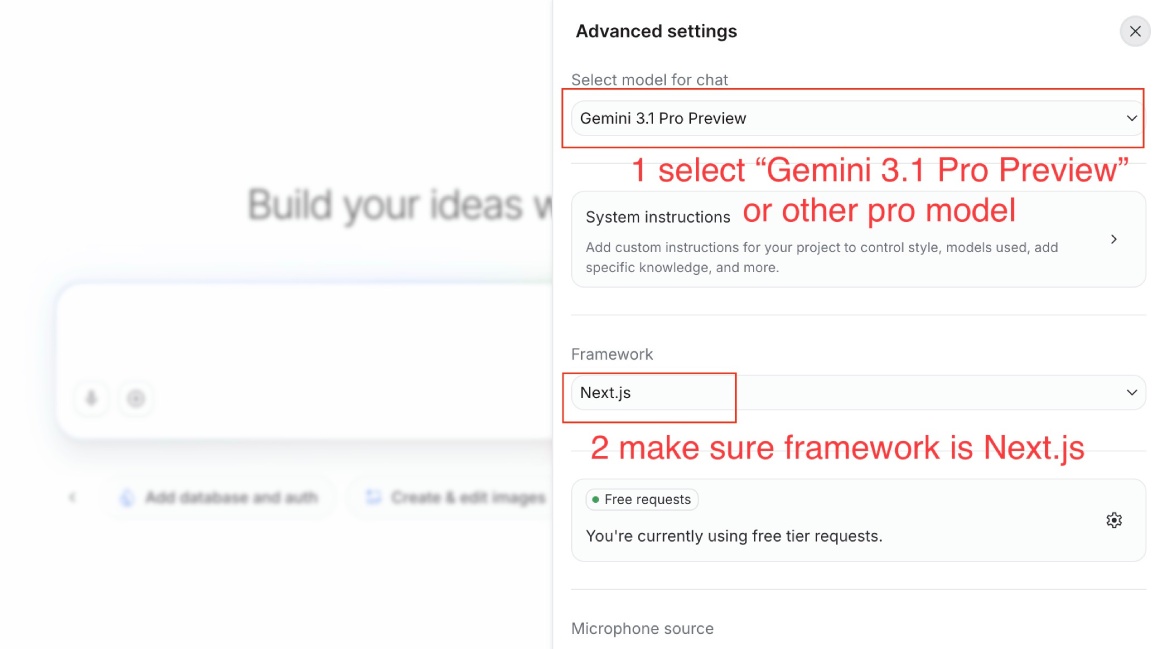
Then select the Pro model, at the time of writing, that is Gemini 3.1 Pro Preview and make sure Next.js is selected as the framework. You are using the pro model because it is more powerful, and in my experience, it follows instructions better and produces output with fewer or no errors. Then you can close the settings and proceed with the prompt.
The prompt to generate the app #
After that, you will paste the following prompt in the textbox below the text Build your ideas with Gemini:
Create a simple login page, then show the user's profile page with the user's name, email, and a photo from the
user's Google profile. On that page, the email should be visible only when the eye icon is clicked.
The user can add and update their address and phone number. The user can also add their LinkedIn and GitHub profiles;
all of that data, along with the user profile data pulled from the Google profile, is saved in the database.

After saving the information, it is presented in a profile page. Please keep the form and the profile page separate.
Please add the necessary validation for the address, phone number, and profile URLs. The application should be built
in the green theme, and the buttons should be dark green.
and also select Add database and auth, after that it will look as follows:
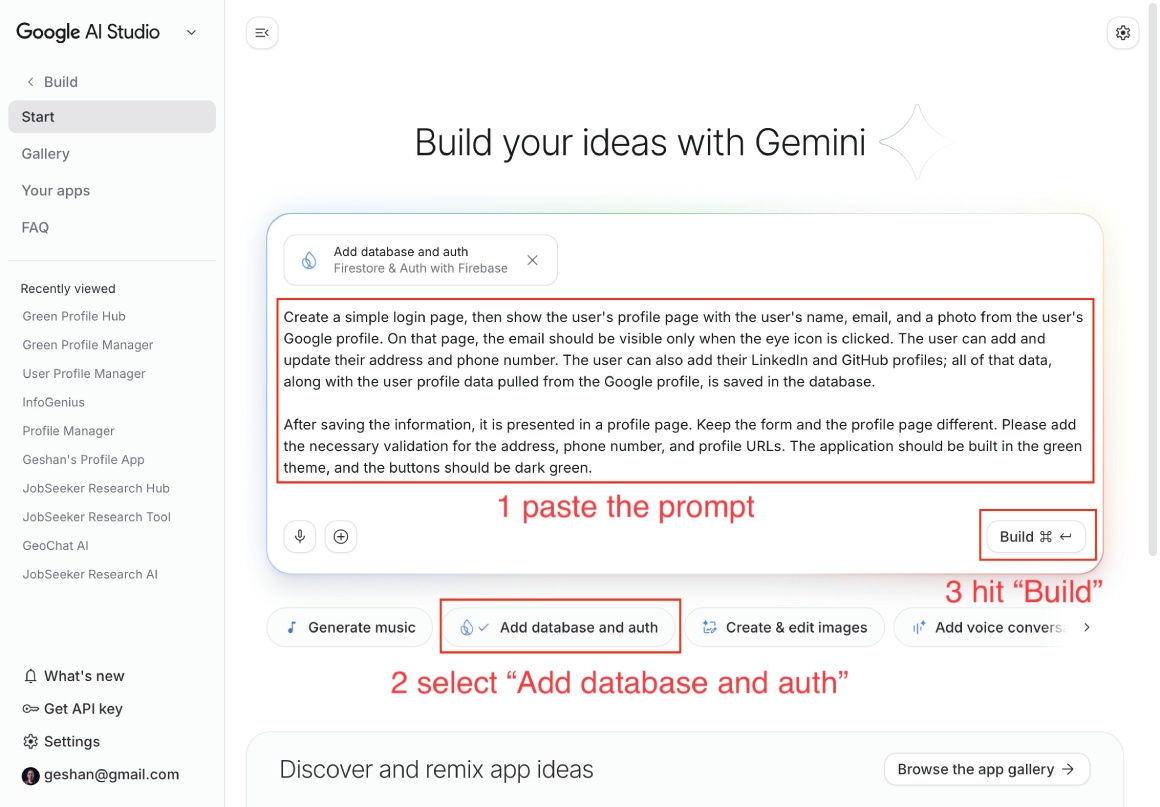
You can use a different color theme, but for this tutorial, you will use the “green” color. Then you will click the Build button to start generating the app.
Google AI Studio will start generating the app as per the given prompt using the Gemini 3.1 pro model, as seen below:
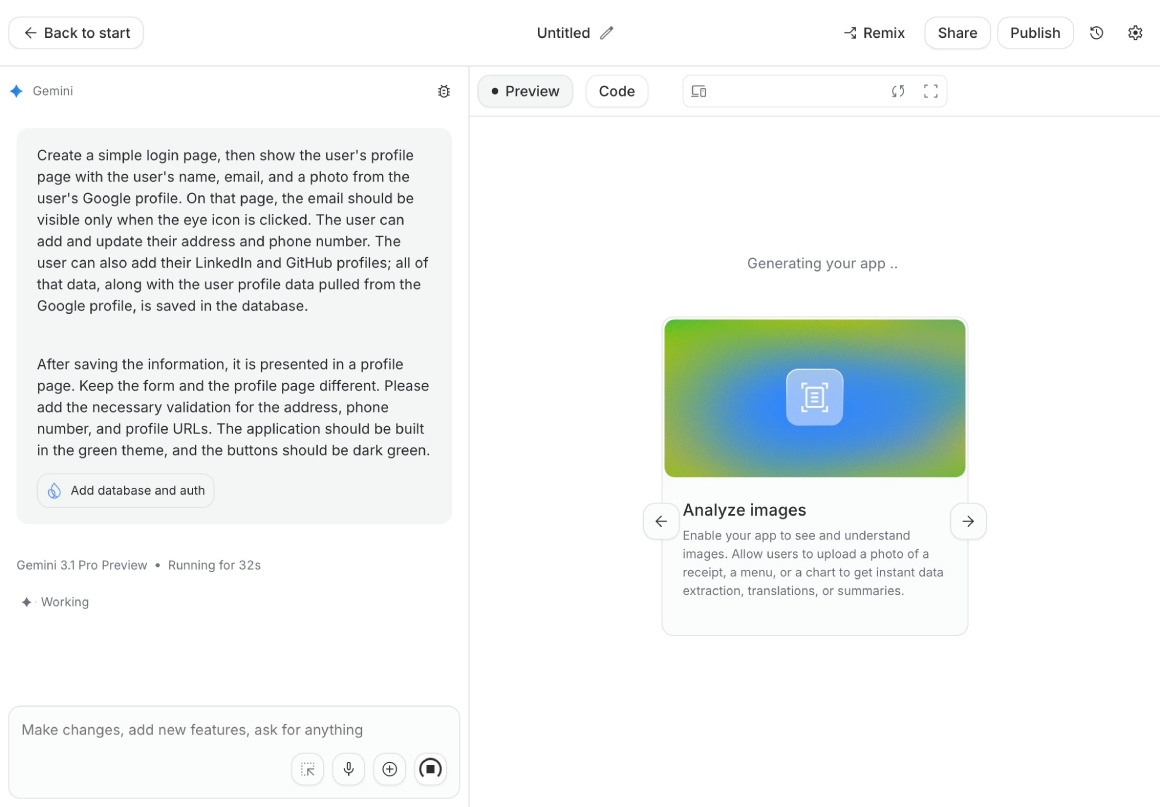
Then it will ask for permission to use Firebase and to accept its terms, as discussed next.
Using Firebase for login and data storage #
After generating the basic app, once the model decides to use Firebase following the given instructions in the prompt, Google AI Studio will ask for permission to use Firebase as well as select the region for the project:
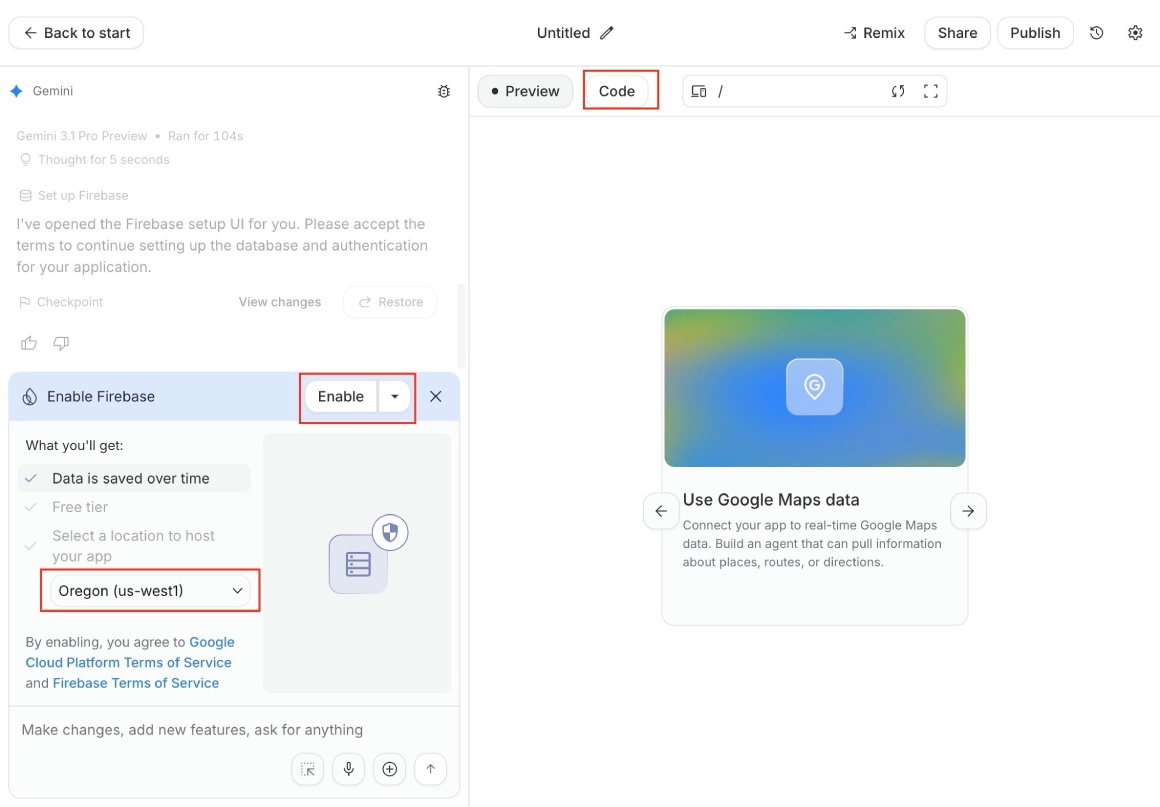
Here, you can select the region as Oregon (us-west1) or any other region that makes sense for you, and click the Enable button to continue the app generation process. You can also click the Code button to see the generated code if that interests you.
After I clicked “Enable”, which automatically agreed to the terms and conditions for Firebase, it worked for almost 4 minutes (223 seconds) and generated the app with a Google login. In the background, it also created the necessary Firebase project and Firestore database:
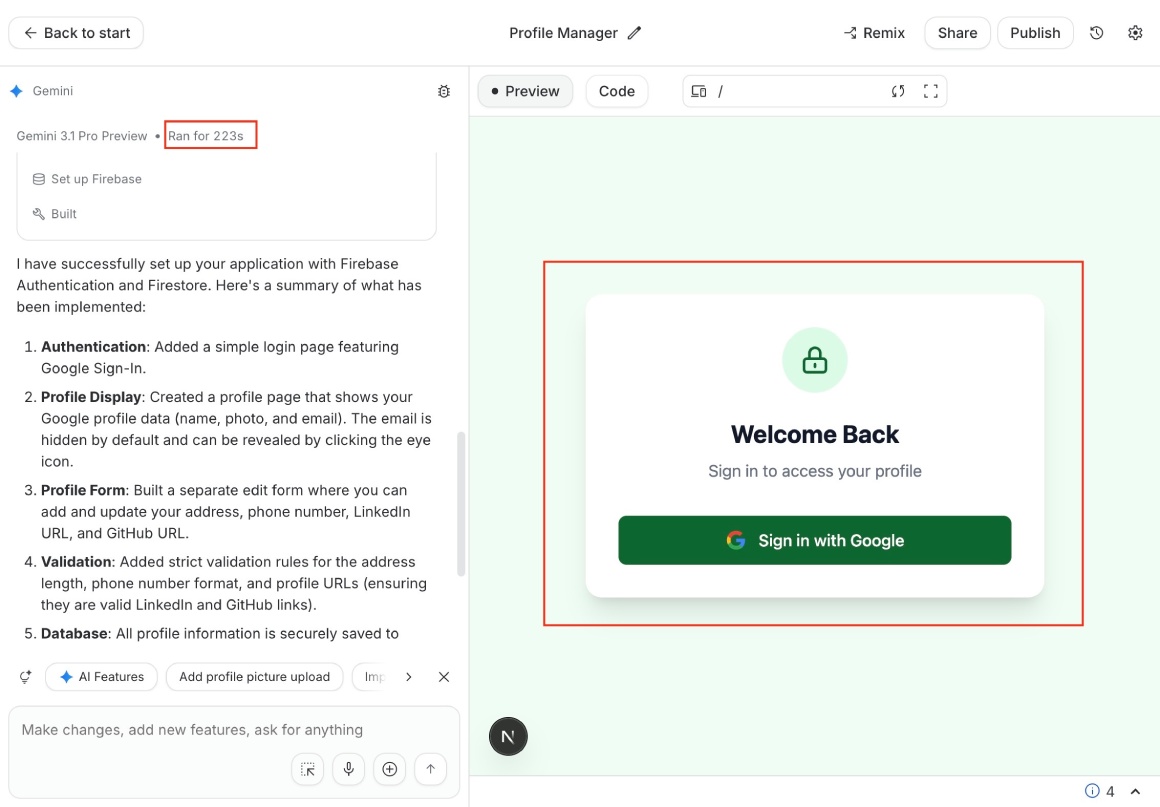
Then you can test the app by clicking the Login to Google button, notice that it adhered to the prompt and created the app with a green theme. It will ask you to continue with your Google account as follows:
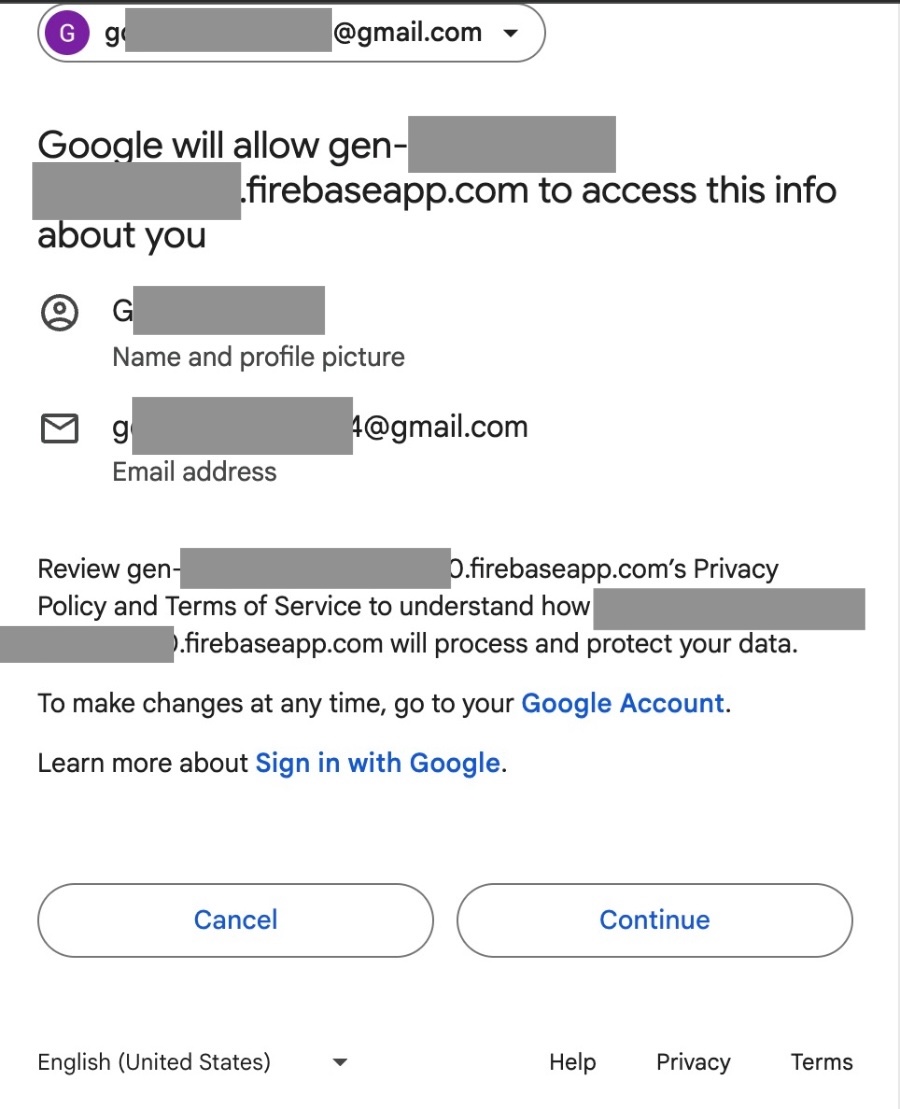
After you click continue and log in, it will show you the name and the profile picture on a form:
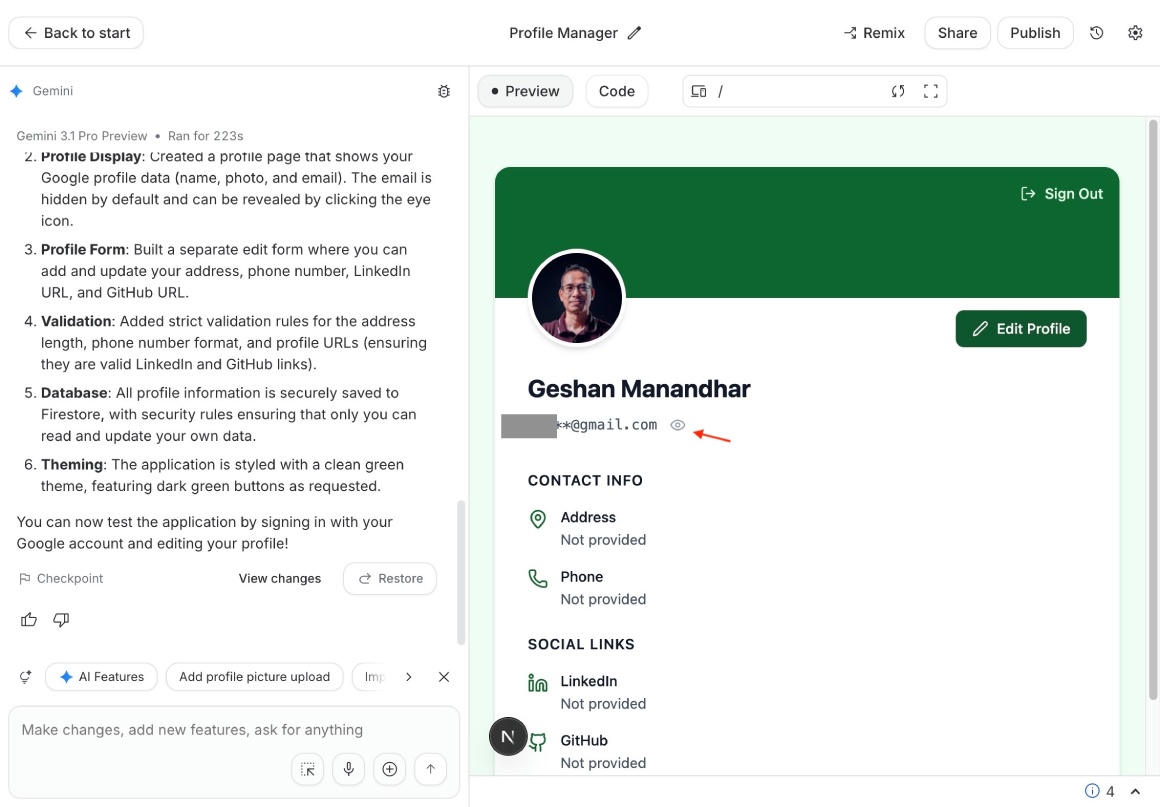
Notice that it also adheres to the prompt and hides the email address, making it visible only after clicking the eye button. You can click the edit profile button to add the details:
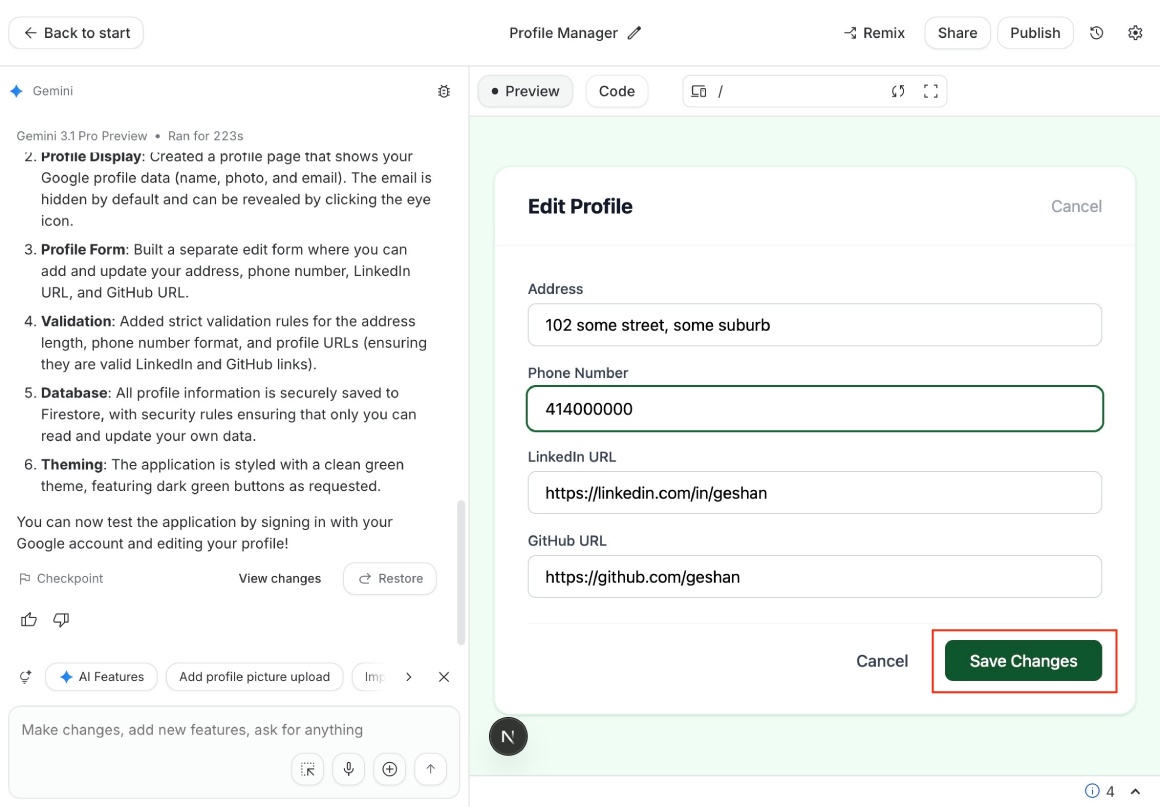
Then you can save the details by clicking the Save Changes button. Keep in mind that your app may look different from the above screenshot as LLMs are non-deterministic. It should then load the profile page as follows:
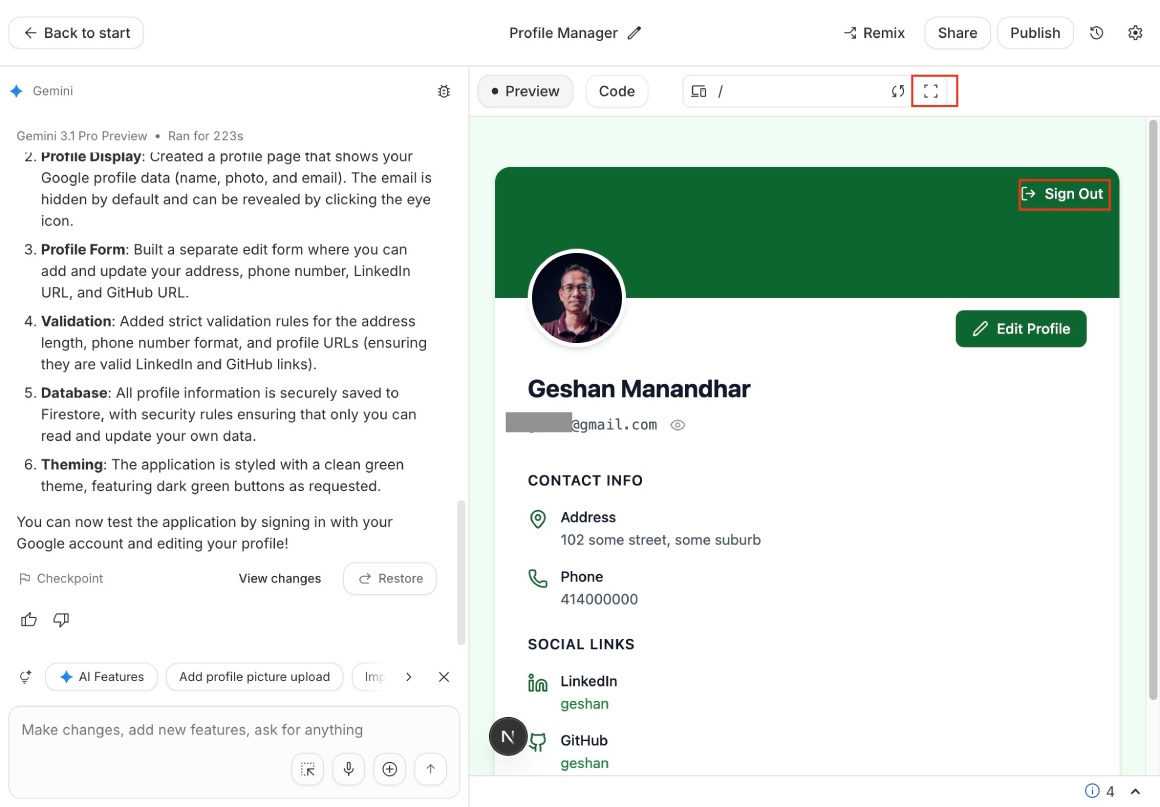
You can try the app in full-screen mode and try changing the details. You can also log out and log in again.
Data in Firestore #
When all of this is happening, it is no longer a frontend-only prototype app. The data is being saved in Firebase Firestore. To verify that, go to your Firebase console – either a new project would have been created, or a Firestore database would have been added to your exiting firebase project.
The database name would usually start with ai-studio and end with the UUID of the AI Studio project, like ai-studio-0042ecab-af9a-4dfb-b5b2-5e39156b6258. When you peek into the Firestore database, you will see the record saved from your Green Profile app:
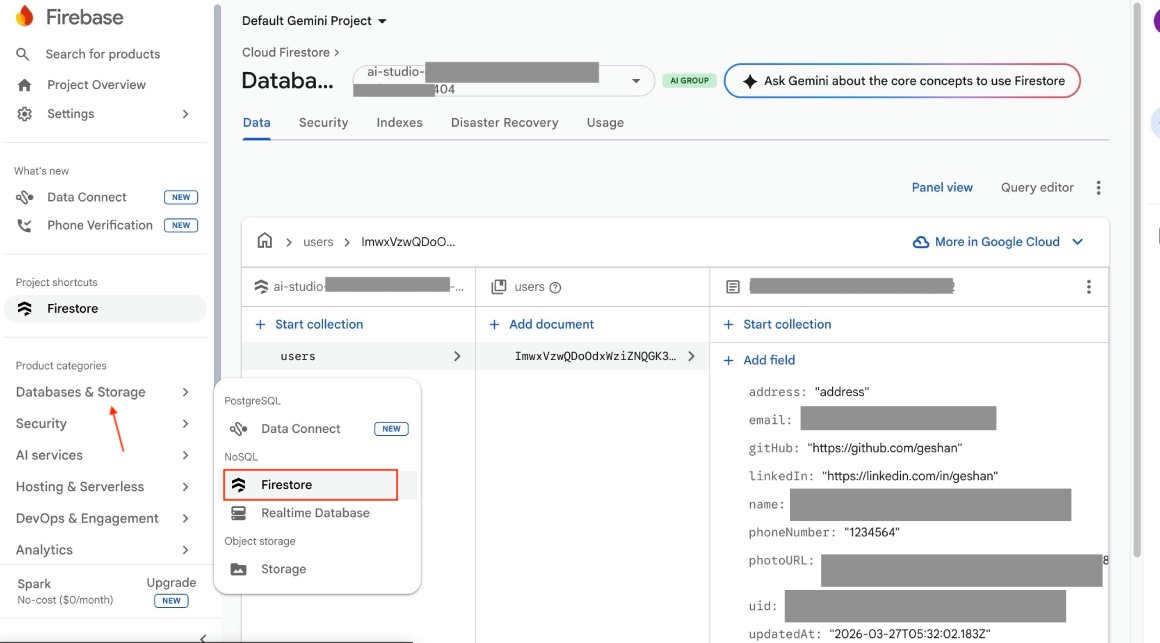
There you have it: a full-stack Next.js app generated with Google AI Studio – one-shot with a single prompt that supports Google login and saves data to Firebase Firestore. You can add more features in the chat section of Google AI Studio, like pulling in data from Google Search or Google Maps.
You can also deploy the app to Google Cloud Run using the publish feature (top-right button) and make it available to anyone in the world via an open URL. The possibilities are endless.
Conclusion #
In this guide, you started with a prompt to build a basic login-and-profile-page app using Google AI Studio. You generated the app and tested it. Finally, you could verify that the data was saved properly on Firestore in Firebase. Every app needs a login and profile page. You can use the chat section in Google AI Studio to explore other newly added features, such as retrieving data from Google Search and Google Maps, or even add intelligence with Gemini or image-generation capabilities to this app. Keep building!