




You can run open models with other apps, such as Ollama. Docker Model Runner shines when you want to connect your application’s Docker container with an open model. It feels more native to Docker to define both the application and the model in a single Docker Compose file. You will learn to do so in this tutorial with a demo app built with Node.js that talks to Smollm2, defined in a Docker Compose file. Let’s get going!
Table of contents #
Prerequisites #
In this part, similar to part 1 about Docker Model Runner, you will need Docker Desktop installed with Docker Model Runner available. You will also need a decent hardware configuration to run the models, especially the ones with billions of parameters. On top of that, the following things will also be needed:
- Docker compose installed on your machine. Compose is bundled with Docker Desktop if it is not installed, please install it.
- A general idea of how Docker Compose works and how services communicate in Docker Compose would be good to know. You can get a refresher with this Docker Compose tutorial
Given that, you can jump to the next section to configure the AI settings for Desktop.
Settings for the API on Docker Desktop #
Any open model you pull and run can expose the APIs for chat completion and other functionalities. For this API to be accessible from your local machine or other containers (inside or outside a docker compose set up), you will need to Enable host-side TCP support when Docker Model Runner (DMR) is enabled.
To do this, you can follow the steps below:
- Open Docker Desktop
- Click on the gear icon (⚙️) on the top right to show the settings of Docker Desktop
- Then, click
AIon the left sidebar - After that, make sure
Enable Docker Model Runneris checked - Also confirm that the
Enable host-side TCP supportcheckbox is also checked - Then click
Applyas seen below:
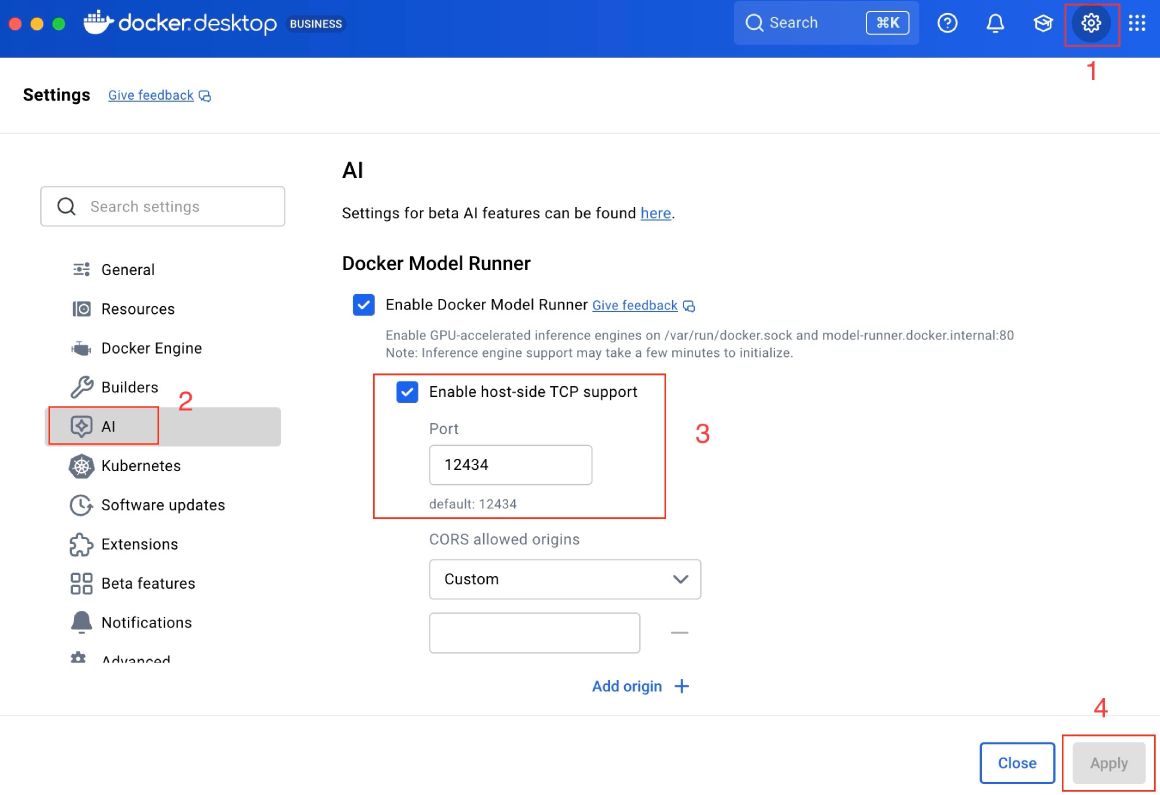
By default, it will use port number 12343, adjust CORS settings if you need to. In the next section, you will learn about the demo Node.js application you will use to chat with the Smollm2 model.
The demo Node application #
For this tutorial, rather than writing a completely new application, you will reuse the Node.js version of the hello-genai open-source code from Docker.
You can use any open model like Gemma 3 or Mistral 3 or even Gemma function if you want to build AI Agents. For this guide, you will use Smollm2's default variant with 360 M parameters as it general purpose and small enough to run on most machines. Next, you will see a snippet of the Node.js Express ap,p which calls the Smollm2 model.
Code for the Node app #
The demo application connects a Node.js Express app to Smollm2, defined as a model in the Docker Compose file. The app is reused from Docker's open-source hello-genai repository. I have taken the node-genai app and modified it a bit. It is a simple chat interface used to send prompts to the model and display the response on a webpage. There is a screenshot if this in action in the later section.
Main part of the code for the Express.js app in the node-genai app is as follows:
app.post('/api/chat', async (req, res) => {
    const { message } = req.body;

    // Special command for model info
    if (message === '!modelinfo') {
        return res.json({ model: getModelName() });
    }

    try {
        const response = await callLLMAPI(message);
        return res.json({ response });
    } catch (error) {
        console.error('Error calling LLM API:', error.message);
        return res.status(500).json({ error: 'Failed to get response from LLM' });
    }
});

// Call the LLM API
async function callLLMAPI(userMessage) {
    const chatRequest = {
        model: getModelName(),
        messages: [
            {
                role: "system",
                content: "You are a helpful assistant."
            },
            {
                role: "user",
                content: userMessage
            }
        ]
    };

    try {
        const response = await axios.post(
            getLLMEndpoint(),
            chatRequest,
            {
                headers: { 'Content-Type': 'application/json' },
                timeout: 30000 // 30 seconds
            }
        );

        if (response.data && response.data.choices && response.data.choices.length > 0) {
            return response.data.choices[0].message.content.trim();
        }

        throw new Error('No response choices returned from API');
    } catch (error) {
        if (error.response) {
            throw new Error(`API returned status code ${error.response.status}: ${JSON.stringify(error.response.data)}`);
        }
        throw error;
    }
}
The above code defines an Express.js API endpoint that sends user messages to a Large Language Model (LLM), which will be Smollm2 in the example, and returns the model’s reply.
The POST /api/chat route reads a message from the request body. If the message is the special command !modelinfo, it immediately returns the current model name via getModelName(). Otherwise, it calls callLLMAPI(message) to get a response from the LLM. If anything fails, it logs the error and returns an HTTP 500 with a friendly error message.
The callLLMAPI function builds a request payload in a chat-style format: a system message that sets behavior (“You are a helpful assistant.”) and the user’s message. It sends this payload to the LLM endpoint (from getLLMEndpoint()) using Axios with a JSON header and a 30-second timeout.
If the API returns a valid response with choices, it extracts and trims the assistant’s reply. If no choices are returned or the API returns an error status, it throws a descriptive error so the caller can handle it properly. You can check the whole app.js and the view file too. In the next section, you will see the Dockerfile for this chat app.
Dockerfile for Node app #
The Dockefile below is used to run the Node.js chat app built with Express.js.
FROM node:24-alpine

WORKDIR /app

# Copy package files
COPY package*.json ./

# Install dependencies
RUN npm install

# Copy application code
COPY . .

# Create directories if they don't exist
RUN mkdir -p views

# Expose port 8080
EXPOSE 8080

# Run the application
CMD ["node", "app.js"]
The above Dockerfile builds a lightweight container for a Node.js application. It would have been better to use a multistage Docker build, still, it is fine for a demo app.
It starts from the node:24-alpine base image, which provides Node.js 24 on a small Alpine Linux distribution. WORKDIR /app sets /app as the working directory inside the container.
COPY package*.json ./ copies package.json and package-lock.json (if present) first, allowing Docker to cache dependency installation. RUN npm install installs all Node.js npm dependencies.
COPY . . then copies the rest of the application source code into the container. RUN mkdir -p views ensures a views directory exists, preventing runtime errors if the app expects it.
EXPOSE 8080 documents that the app listens on port 8080. Finally, CMD ["node", "app.js"] defines the default command to start the application when the container runs.
It is a good enough Dockefile for a small chat app like this. The next section details the Docker Compose file that links this app and container to the Smollm2 model.
Docker compose file with Node app and Smollm2 model #
You can link up the Node.js Chat app with the Smollm2 model easily using a Docker Compose file that looks like:
services:
  node-genai:
    build:
      context: .
      dockerfile: Dockerfile
    ports:
      - "8082:8080"
    environment:
      - PORT=8080
    models:
      - smollm2
    healthcheck:
      test: ["CMD", "curl", "-f", "http://localhost:8080/health"]
      interval: 30s
      timeout: 10s
      retries: 3
      start_period: 10s

models:
  smollm2:
    model: ai/smollm2
    context_size: 8048
The above Docker Compose file defines a single service, node-genai, and its related AI model configuration.
The node-genai service is built from the local directory using the specified Dockerfile as seen in the above section. It maps port 8082 on the host to port 8080 inside the container, allowing external access to the Node.js app. The PORT=8080 environment variable configures the app’s listening port. The models section links this service to a model named smollm2.
A health check is a mechanism for verifying that the service is running correctly. It uses curl to call http://localhost:8080/health every 30 seconds, with a 10-second timeout, three retries, and a 10-second startup grace period.
The models section declares the Smollm2 model, referencing the image ai/smollm2 from DockerHub and setting a context size of 8048 tokens, which controls how much text the model considers at once.
In the next section, you will run the chat app and the model together with Docker Compose.
Running the app with Docker Compose #
To run the Node.js Chat app built with Express.js and Smollm2 attached to it, you can run the following command, which will first build the app and then run the app and the model in the background:
docker compose build && docker compose up -dIt will give an output like the following:
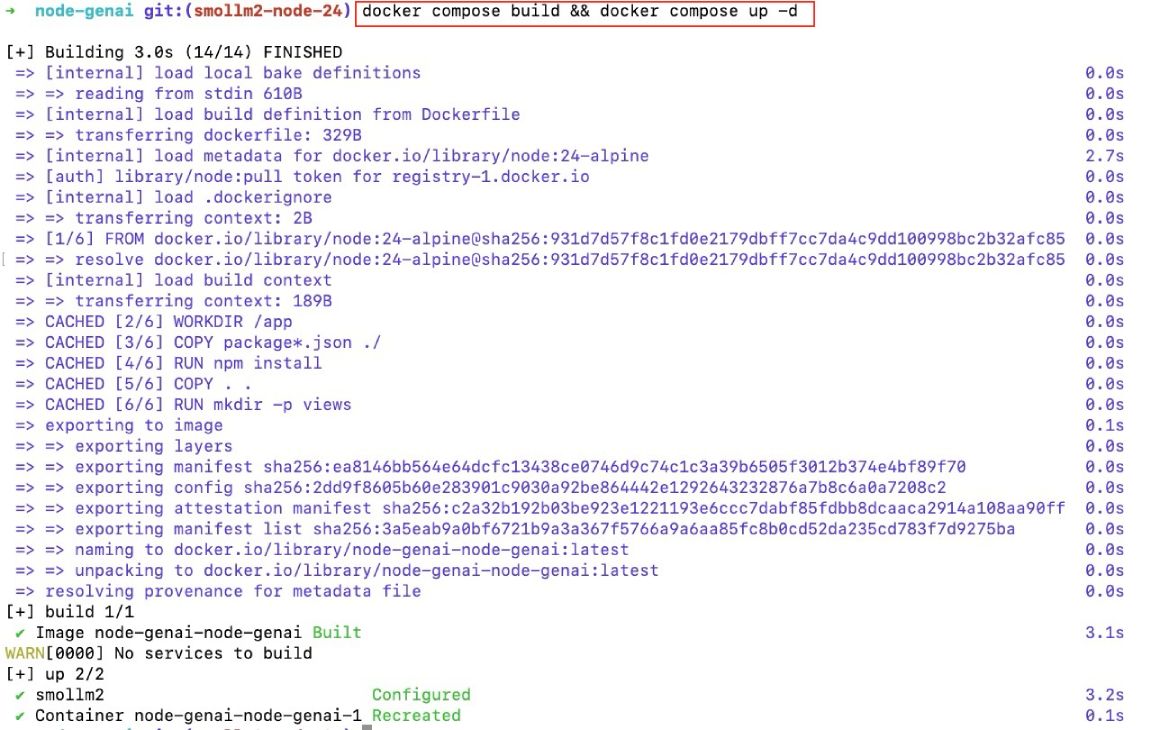
You don’t need to build the container every time; you can do docker compose up -d the next time. After that, to confirm that the containers are runnin,g you can execute:
docker compose logs -fWhich will show something like:

As the app is running on localhost port 8082, you can open your browser of choice and hit http://localhost:8082, which will render something similar to:
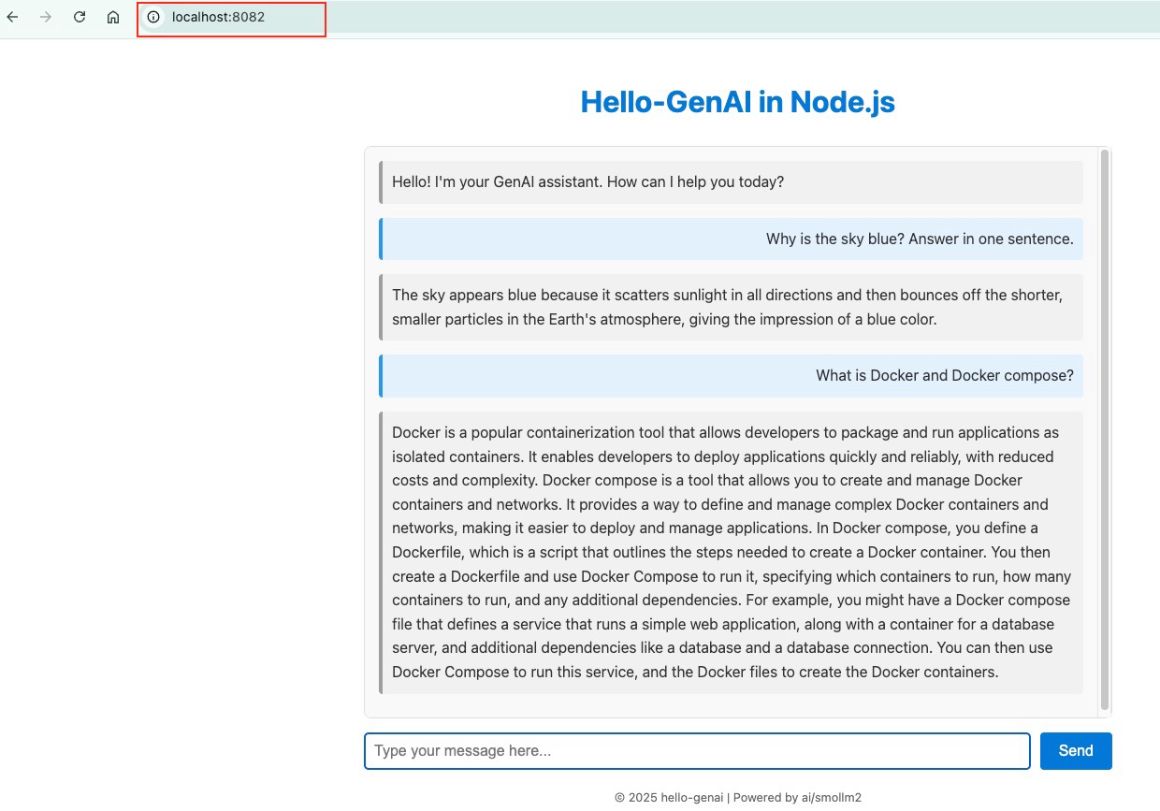
Docker includes an internal URL for the Model’s APIs at http://model-runner.docker.internal/, which can be called by other containers. If you want to call it from localhost, it is running on port 12434. Then you can chat with Smolllm2 via the simple Node.js chat interface.
To check the running containers, you can run docker compose ps. To stop the containers, run docker compose stop. To check the running models, you can run docker model ps. To unload Smollm2, you can run docker model unload smollm2; if you run docker model ps, it will not be running Smollm2 anymore.
In my experience, when running AI models locally, they can start to eat up CPU resources. So it is best to unload the model when you are done using it.
Conclusion #
In this post, you built on part 1, the introduction to Docker Model Runner, by connecting a simple Node.js (Express.js) chat app to the Smollm2 model using Docker Compose. You saw the code for the chat app, then a simple Dockerfile to run a Node.js app, and finally the Docker Compose file that connects the app to the open model (SmolM2 in this case). Then you ran it and saw it in action. Keep Learning!