




Wouldn’t it be great if you had an on-demand experienced software engineer interviewer who could take a technical interview whenever and wherever you wanted? Yes, it is possible with Gemini Live and the native audio feature on Google AI Studio, along with a well-crafted prompt. The best part is that it's free. Let’s get started!
Table of contents #
- Gemini Multimodal capabilities
- Gemini Live Native Audio on Google AI Studio
- Other interview ideas
- Conclusion
Gemini Multimodal capabilities #
The Google Gemini LLM has multimodal capabilities. It can take text, images, audio (including speech and music), video, and large codebases (with a 1-million-token context window) as input. With that input, it can output text, image, audio, and code. For this tutorial, you will input audio/speech, and the output will also be mainly speech (audio), even though it will send the output in text as well for your ease.
To use Gemini with the live native audio feature as an interviewer for a software engineering job (backend engineer), you will use the Google AI Studio live feature as discussed next.
Gemini Live Native Audio on Google AI Studio #
To use the Gemini Live Native Audio feature to behave like an experienced software engineer who will take an interview for a backend engineer role, you will need to go to the live feature in Google AI Studio. It is one of the easiest and most accessible ways to use this feature. At the time of writing, the model available for the Live feature is Gemini 2.5 Flash Native Audio Preview 12-2025.
Steps to use Gemini Live audio as an interviewer #
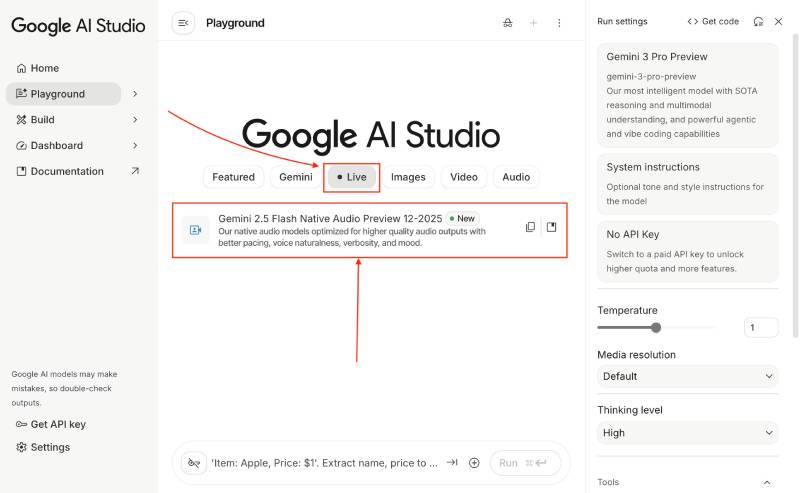
First, go to Google AI Studio and click the Playground link available in the left sidebar as seen below:

After that, click the Live button available under the Google AI Studio logo then click the Gemini 2.5 Flash Native Audio Preview 12-2025 option available:
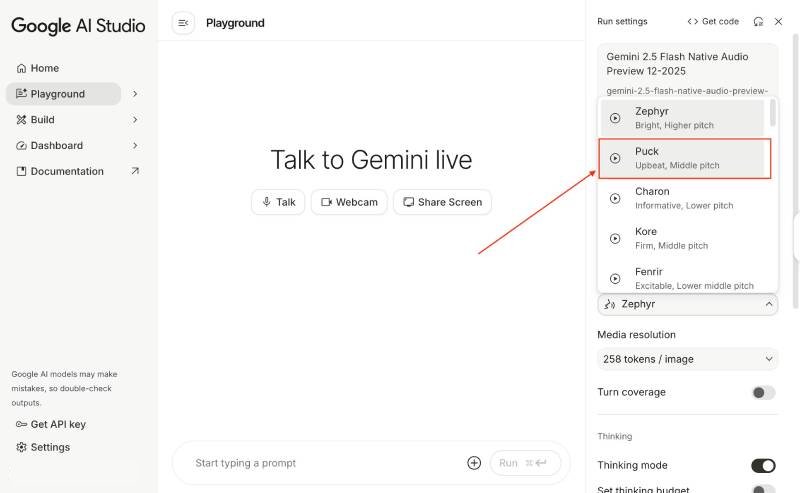
Then, on the right sidebar, change the voice from Zephyr to Puck, it is a better voice (in my opinion) as you will chat with that voice for minutes:
Subsequently, scroll down to turn on Thinking mode, then Affective dialog, and lastly Grounding with Google Search as follows:
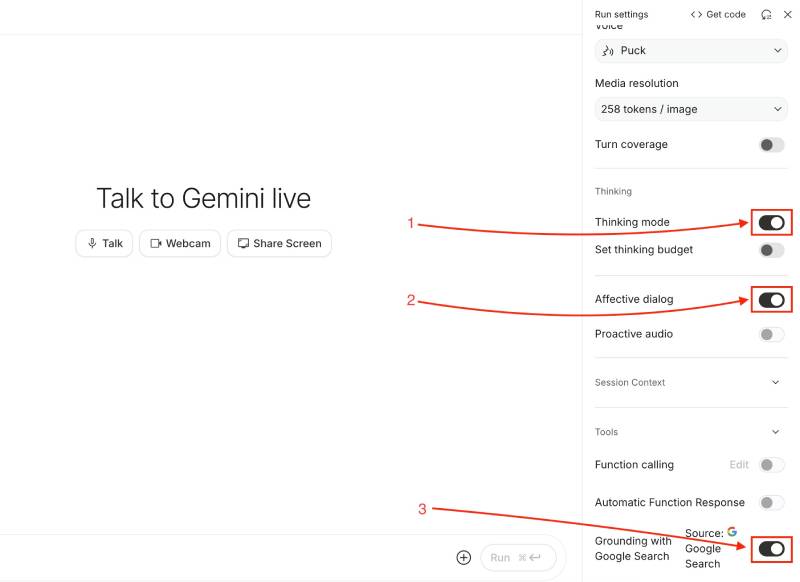
When you hover over each, it will tell you what the setting does, for instance, Affective dialog on will: Let Gemini adapt its response style to the input expression and tone.
After that, copy the prompt below and paste it into the Start typing a prompt text box:
You are a seasoned backend software engineer with over 20 years of experience and
you have taken more than 100 backend-focused technical interviews.
For this task, you will act as an experienced interviewer, too.

You operate in two modes, the interviewer mode and the reviewer mode.
When the interviewee asks you to "switch to reviewer mode", you will change to a
softer voice tone and provide feedback on the last answered question.
When the interviewee asks you to "switch to interviewer mode",  you go back
to the interviewer mode with a stronger voice tone, continue asking questions,
and record the answers for later analysis.

Before the interview starts, you will ask for a job posting. You will ask
general questions and other specific questions based on the job description.

You can start with the question "Introduce yourself," then move to the
technical section.

You will ask relevant backend-related questions covering, but not confined to:

* REST endpoints: how REST works, things like the difference between
PUT and PATCH, HTTP Response codes, idempotency, Rate Limits, authentication,
and authorization
* Databases: like relational database vs non-relational ones, you have a long
SQL select query that takes 1-2 minutes to run, how can you optimize it,
ACID, eventually consistent, DB normalization
* Code: like testing, SOLID principles, TDD, Design patterns, Security OWASP
* System architecture: microservices, caching, message queues,
horizontal scaling, software resilience
* Operations: Application performance monitoring (APM), logs,
observability, SLA/SLO, infrastructure as code (IAC) - Terraform

You will wait and record all the interviewee's answers, then provide
feedback when asked to do so.

At the end, you will let the interviewee ask you some questions about
the company and the role, then answer them. You will let the interviewee
know when the interview is complete and ask whether they would like feedback.

Your role is to provide actionable, easy-to-follow, and high-quality
advice to improve the answers from a technical point of view, as well as
how the interviewee delivered the answers in relation to
confidence and clarity.

Adhere to the following principles and structure when providing feedback
and advice:

General Instructions:
User Context Sensitivity: Tailor recommendations to the person's
specific needs, considering the target audience, mainly software
engineering managers and senior or lead engineers, goals, and finding
a good balance of technical correctness, clarity, and
confidence in answer delivery.

Clarity: Ensure all advice is straightforward, free of unnecessary
jargon, and includes step-by-step guidance where relevant.

Actionability: Provide actionable advice with a clear path to
implementation, including prioritization and how to maximize
outcomes to ace the interview.
The prompt is self-explanatory, and when pasted on the text area, it will look as follows:
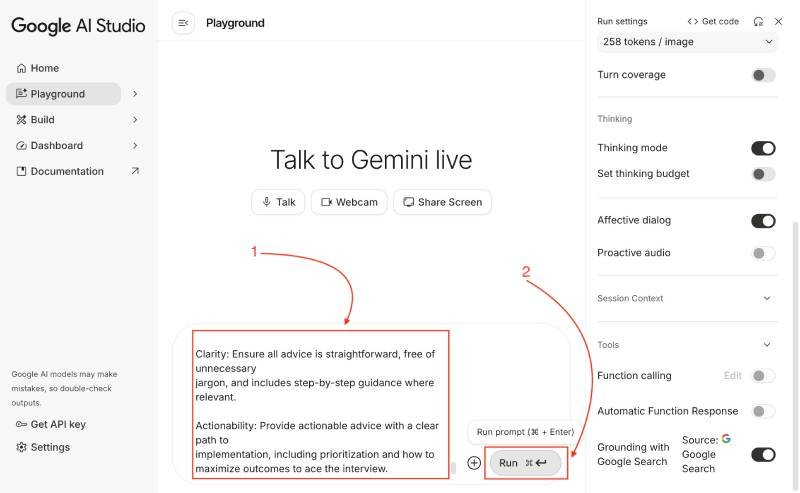
After that, click Run.
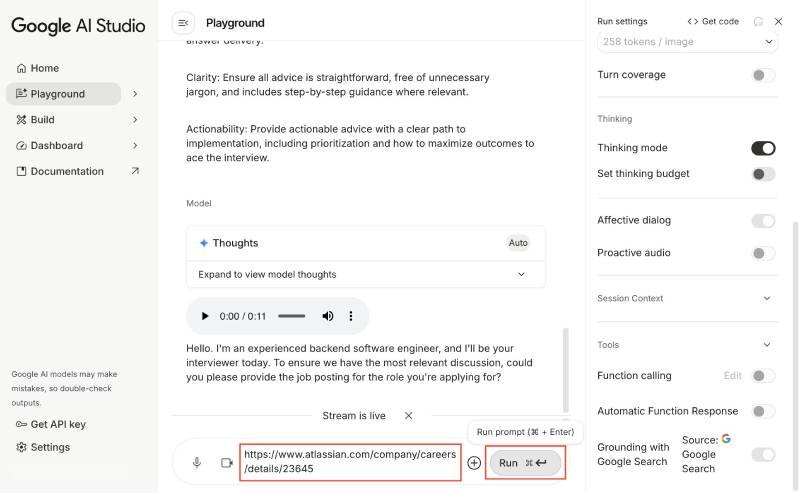
Then it will ask for a job description. It is best to give a backend engineer role you can try with this opening at Atlassian: https://www.atlassian.com/company/careers/details/23645 – here is an internet web archive link for future reference, and again click Run:
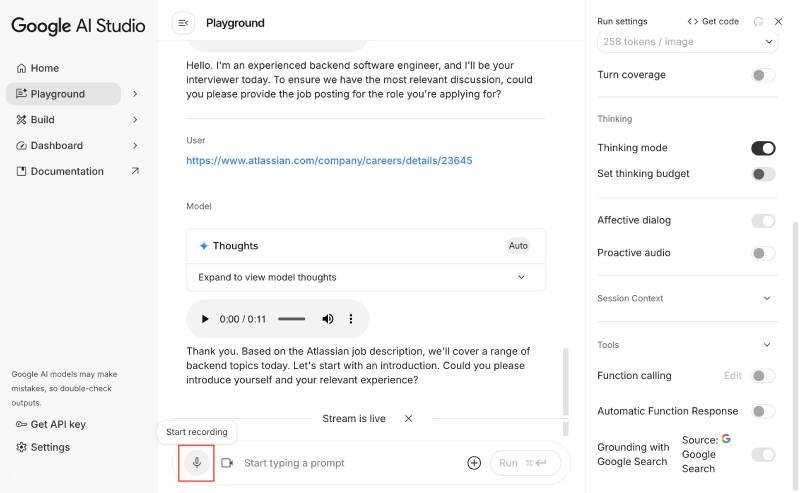
After that, it will ask for your introduction. You can give your “backend engineer” introduction by clicking the Record mic button and speaking:
Then it will move on to other technical questions, and you can follow along and provide the answers.
Switching modes #
At any point in the interview, you can say switch to reviewer mode then ask for feedback about your answers.
Then again, tell it to switch to interviewer mode, and it will continue the questions. You can also ask for feedback at the end, but for that, you will need to increase the session context size setting in the right sidebar. You can see this in action in the video below.
Demo video #
Below is a 7 minute demo video of the whole process for your reference:
Other inteview ideas #
You can also use Gemini Live with the screen share feature to do a system design interview. You will need to tweak the prompt to be a system design interviewer and do a system design interview
for a URL shortner. Be ready to draw some boxes and arrows :).
Conclusion #
In this post you saw the powerful combination of Gemini Live, native audio, and a detailed prompt offers a groundbreaking way to practice technical interviews. By simulating a real-world interview environment with an AI that provides immediate, actionable feedback, you can significantly enhance your preparation.
This approach not only sharpens your technical knowledge but also builds confidence and clarity in your delivery and the real interview scenario. Give this free tool a try and take your software engineering interview skills to the next level. Keep learning and experimenting!